
MovieBox TV APK Download for Android TV
For the standard Android phone build and download details, see the Movie Box Mod APK page.
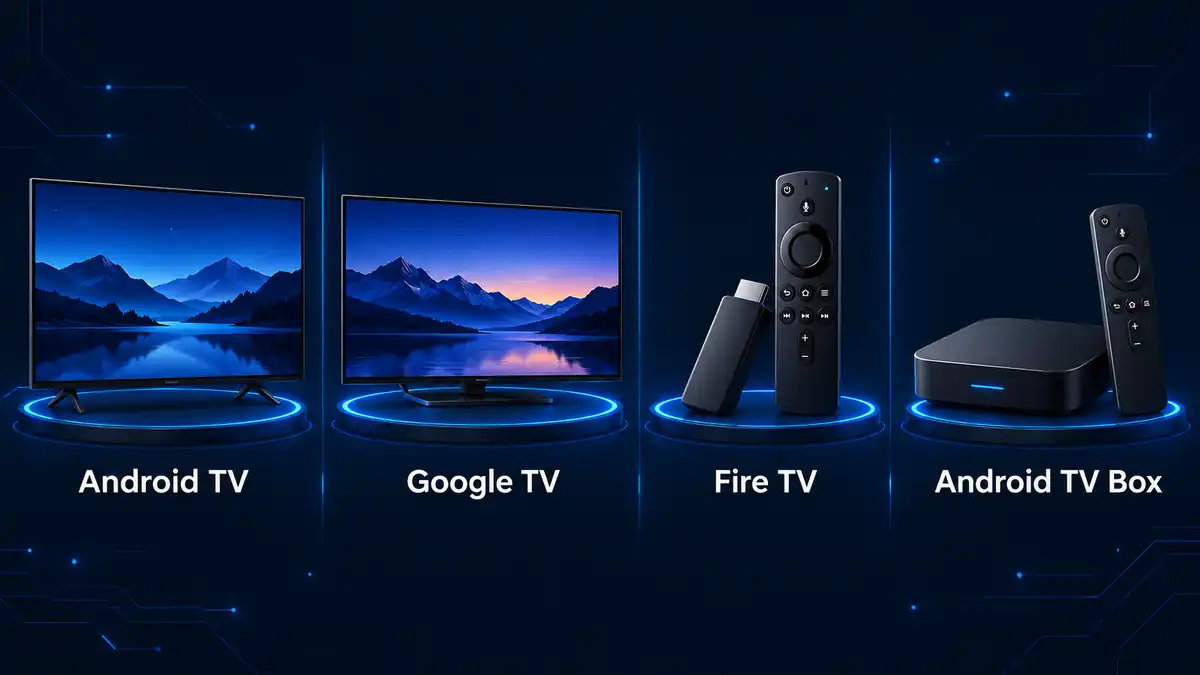
MovieBox TV APK is the TV-focused Android build designed for larger screens and remote-controlled devices. It can be used on compatible Android TV and Google TV hardware, and it can also be sideloaded on supported Fire TV devices where APK installation is allowed.
This page is specifically for the TV build. If you are installing MovieBox on an Android phone or tablet, use the standard Android version instead.
MovieBox TV APK Details
 MovieBox TV APK Details
| App | MovieBox TV |
|---|---|
| Version | 1.1.11.0915.03 |
| File | movieboxtv-premium_v1.1.11.0915.03.apk |
| Size | 85.5 MB |
| Platform | Android TV / Google TV / compatible Fire TV |
| Package type | APK |
| Build | TV build |
| File checked | October 6, 2026 |
 Version
 File
File Platform
 Package type
 Build
Build File checked
The file size shown here comes from the APK currently hosted in our download repository. TV builds can differ from phone builds in both size and interface, so do not compare the TV APK directly with the standard Android package.
Which Devices Can Use MovieBox TV APK?
 Which Devices Can Use MovieBox TV APK?
MovieBox TV APK is intended for devices that can install Android APK files. The exact installation path varies by operating system and manufacturer.
If you want to run the Android app on Windows instead of a television device, use the MovieBox for PC guide.
Android TV
Android TV televisions and boxes can generally install APK files when installation permission is enabled for the browser, file manager, or transfer app being used.
Google TV
Google TV uses an Android-based platform, so APK sideloading is possible on compatible devices such as Chromecast with Google TV and other Google TV hardware.

Amazon Fire TV and Fire TV Stick
Fire TV devices use Fire OS rather than standard Android TV, but supported models can install APK files through tools such as Downloader after the required installation permission has been enabled.
Android TV Boxes
Android-based TV boxes can usually install APK files directly through a browser, file manager, USB storage, or a phone-to-TV transfer tool.
TVs That Cannot Install Android APK Files Directly
 TVs That Cannot Install Android APK Files Directly
Not every smart TV runs Android.
Samsung TVs using Tizen, LG TVs using webOS, Roku TVs, and Apple TV devices do not normally install Android APK files directly. For these televisions, an external Android TV, Google TV, or Fire TV device is usually required if you want to run an Android APK.
That distinction is important because many search results loosely use the phrase “smart TV,” even though the installation method depends on the TV operating system.
How to Install MovieBox TV APK on Android TV
 How to Install MovieBox TV APK on Android TV
Installing the TV build requires two things: the APK file and permission for the app that opens it to install unknown apps. The exact menu names can vary between Android TV and Google TV versions, so follow the equivalent setting shown on your device.
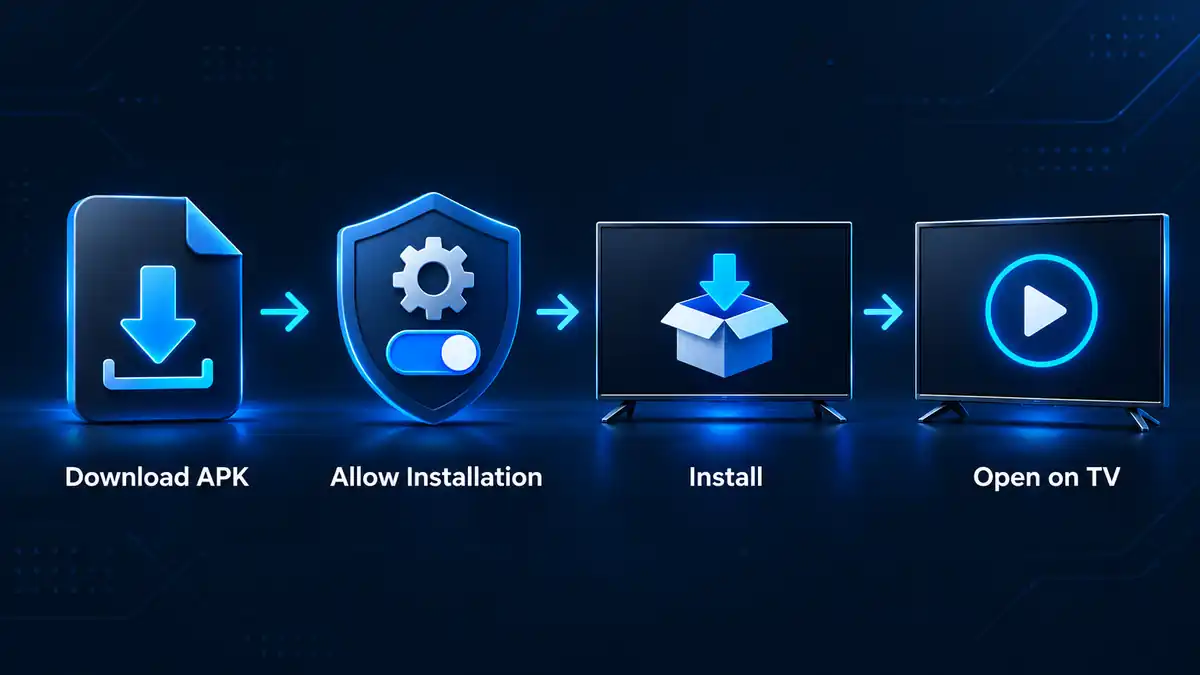
1. Download the MovieBox TV APK
Use the download button near the top of this page to get the TV APK. Allow the file to finish downloading before opening it.
If you downloaded the APK on another device, transfer it to the TV first using USB storage or a compatible file-transfer app.
2. Open the APK File
Open the downloaded APK from your browser, Downloads area, or file manager. Android TV may stop the installation and ask you to allow installs from that source.
3. Allow Installation From That Source
Open the installation permission for the app that is trying to open the APK, such as your browser or file manager.
Enable “Allow from this source”, then return to the MovieBox installer.
Only enable the permission for the app you are actually using to open the APK.
4. Install MovieBox TV
Review the Android installation prompt and choose “Install”.
Wait until Android confirms that the app has been installed before leaving the installer.
5. Open the TV App
Choose “Open” after installation, or launch MovieBox TV from the Apps section of your television or streaming device.
The first launch can take slightly longer while the app creates its local data and loads the TV interface.
Install MovieBox TV APK With Downloader
Downloader is commonly used on Android TV, Google TV, and Fire TV devices because it can download an APK directly on the television without requiring a computer.
1. Install Downloader
Open the app store available on your TV device and install the Downloader app if it is available for your platform.
2. Allow Downloader to Install Apps
If your device blocks APK installation, open the system setting for installing unknown apps and allow Downloader to install files.
Depending on the device, this may appear under Apps, Security, Privacy, Special app access, or Developer Options.
3. Enter the APK Download Address
Open Downloader and enter the direct MovieBox TV APK address.
https://github.com/ZeeshanWazirKhan/moviebox-downloads/releases/download/tv-v1.1.11.0915.03/movieboxtv-premium_v1.1.11.0915.03.apk4. Download and Install
Allow Downloader to retrieve the APK. When the Android installer opens, choose “Install” and wait for completion.
After the installation finishes, you can remove the downloaded APK file from local storage if you no longer need it.
Install MovieBox TV APK Using USB or File Transfer
A direct TV download is not the only option. If entering a long URL with a remote is inconvenient, you can download the APK on another device and transfer it to the television.
USB Storage
Download the MovieBox TV APK on a computer, copy the file to a USB drive, and connect the drive to the TV or Android TV box.
Open the USB drive with a file manager, select the APK, and allow installation from that file manager if Android requests permission.
Phone-to-TV File Transfer
A compatible file-transfer app can send the APK from an Android phone to an Android TV or Google TV device over the same network.
After the APK arrives on the TV, open it with a file manager and complete the Android installation process.
Cloud Storage
If your TV file manager supports a cloud-storage provider, you can upload the APK from another device and retrieve it on the television.
Only use a cloud account you control, and make sure the file you install matches the intended MovieBox TV APK.
Installing MovieBox TV on Fire TV and Fire TV Stick
Fire TV runs Fire OS, so the menus differ from Android TV even though APK sideloading is supported on compatible models.
Enable Installation Permission
Open the Fire TV settings and find the option that controls installation from unknown apps.
On newer Fire OS versions, this is commonly managed per app. Allow the app you will use to download or open the MovieBox APK.
Use Downloader or Another Approved File Source
Open Downloader on the Fire TV device, enter the MovieBox TV APK address, and let the file download.
When the Fire OS installer appears, choose “Install”.
Launch MovieBox TV
After installation, open the Apps area on Fire TV and launch MovieBox.
If the app does not immediately appear in the main row, check the complete installed-apps list.
After Installing MovieBox TV
Once MovieBox TV opens, confirm that the interface responds correctly to the remote before changing any other device settings.
- Directional navigation
- Select/back buttons
- Video playback
- Audio output
- Subtitles if you use them
- Network connection
A TV APK can install successfully but still behave differently across television hardware, Android versions, or remote-control implementations. If navigation or playback does not work correctly, treat that as a compatibility issue rather than repeatedly reinstalling the same APK.
Common MovieBox TV Installation Problems
A TV APK can install differently across Android TV, Google TV, Fire TV, and Android TV boxes. If MovieBox does not install or work correctly, first identify whether the problem is with the APK installation, the device, the remote, or playback.
If installation completes but MovieBox not opening problems continue, work through the basic Android troubleshooting checks.
App Not Installed
If Android shows an “App not installed” message, check whether another MovieBox build is already installed on the device.
A package conflict, different signing key, insufficient storage, or incompatible build can prevent installation. Remove an existing conflicting installation only after saving anything you need from it.
APK Downloads but Will Not Open
If the APK finishes downloading but nothing happens when you open it, make sure the browser, Downloader, or file manager has permission to install apps.
Return to the installation permission for that specific app, enable the required access, and then open the APK again.
MovieBox TV Does Not Appear in the Apps List
Some TV launchers do not immediately place sideloaded apps on the main home screen.
Open the complete Apps section or device application settings and look for MovieBox there. Restarting the TV device can also refresh the installed-app list.
Remote Navigation Does Not Work Correctly
A TV-focused build should respond to directional and select controls, but remote behavior can still vary between devices.
If focus does not move correctly or some controls cannot be selected, test the app with the standard remote first. If the problem continues, the build may not be fully compatible with that device or launcher.
Video Opens but Playback Fails
Playback problems can come from the network connection, the selected stream, device decoding support, or temporary app/service issues.
Test another title and confirm that the TV has a stable internet connection before reinstalling the APK.
No Sound During Playback
First check the TV or sound system volume and confirm that other apps produce audio normally.
If the problem affects only one video or audio track, test another title. Device audio-format support can differ between televisions, boxes, and connected receivers.
Android TV vs Google TV vs Fire TV
| Comparison point | Android TV | Google TV | Fire TV |
|---|---|---|---|
| Operating system | Android TV | Google TV interface built on Android TV | Fire OS |
| APK installation | Supported on compatible devices | Supported on compatible devices | Supported on compatible Fire TV devices |
| Common install methods | Browser, file manager, USB, transfer app | Browser, file manager, USB, transfer app | Downloader or compatible file source |
| Install permission | Managed per source/app depending on Android version | Managed per source/app depending on system version | Managed through Fire TV installation settings |
| Remote control | Standard TV remote navigation | Standard Google TV remote navigation | Fire TV remote navigation |
| Best approach | Use the method easiest on your device | Direct download or file transfer | Downloader is usually the most convenient |
The MovieBox TV APK file remains the same, but the steps used to reach the installer can differ between platforms.
MovieBox TV APK vs Phone APK
The TV and phone packages serve different device types. Use the TV build for television-based Android devices rather than assuming the standard phone APK will provide the same interface or remote-control experience.
Apple mobile devices use a different application environment, explained in the MovieBox for iPhone guide.
| Comparison point | MovieBox TV APK | MovieBox Android Phone APK |
|---|---|---|
| Designed for | TVs, streaming devices and TV boxes | Phones and tablets |
| Main control | Remote control | Touchscreen |
| Interface | Larger-screen TV layout | Mobile interface |
| Current file size on this site | 85.5 MB | 64 MB |
| Installation format | APK | APK |
| Recommended use | Android TV, Google TV and compatible Fire TV devices | Android phones and tablets |
A successful phone-APK installation on a TV does not mean the interface will be comfortable to use with a remote. For television devices, use the dedicated TV build when possible.
Frequently Asked Questions
 Frequently Asked Questions
What is MovieBox TV APK?
MovieBox TV APK is the Android television build of MovieBox intended for compatible Android TV, Google TV, Fire TV, and Android-based TV box devices.
Can I install MovieBox TV APK on Android TV?
Yes, compatible Android TV devices can install APK files when installation permission is enabled for the browser, file manager, or other app opening the APK.
Does MovieBox TV work on Google TV?
Google TV runs on an Android TV-based platform, so compatible Google TV devices can sideload Android APK files.
Can I install MovieBox TV on Firestick?
Compatible Fire TV and Fire TV Stick devices can sideload APK files. The installation menus differ from standard Android TV because Fire TV uses Fire OS.
Can I install this APK directly on a Samsung or LG Smart TV?
Not normally. Samsung Tizen and LG webOS televisions do not directly install Android APK files. An external Android TV, Google TV, or Fire TV device would be needed to run an Android APK.
Do I need Downloader to install MovieBox TV?
No. Downloader is one convenient method, especially on Fire TV, but you can also use a browser, file manager, USB drive, phone-to-TV transfer, or another compatible file source.
Why does MovieBox TV install but not work with my remote?
Remote handling can vary between television hardware, Android versions, launchers, and APK builds. If directional navigation or selection does not work correctly, the build may not be fully compatible with that device.
Is the MovieBox TV APK the same as the Android phone APK?
No. The TV build is intended for larger screens and remote-controlled devices, while the standard Android package is intended primarily for phones and tablets.
Conclusion
MovieBox TV APK provides a separate television-focused build for compatible Android TV, Google TV, Fire TV, and Android TV box devices. The best installation method depends on the platform: some devices can download the APK directly, while others are easier to set up with Downloader, USB storage, or file transfer.
Use the dedicated TV build on television devices, enable installation permission only for the source you are using, and confirm that navigation, playback, audio, and network access work correctly after installation.