
Movie Box Mod APK Old Versions for Android
For the current release instead of an archived build, use the Movie Box Mod APK download page.
Movie Box Mod APK old versions can be useful when a newer release does not install correctly, performs poorly on an older Android device, or changes something you preferred in an earlier build. This page keeps previous MovieBox releases organized in one place so you can identify the version you need before installing it.
Older APKs should not automatically be treated as better than the current release. They can miss newer fixes, compatibility improvements, or changes introduced in later builds. If the latest MovieBox version works properly on your device, staying with the current build is normally the simpler option.
Choose a MovieBox Old Version
 Choose a MovieBox Old Version
The version selector below groups previous MovieBox releases by region. Choose the build you are looking for, then use the installation guidance further down this page before replacing a newer version.
Global MovieBox Versions
 Global MovieBox Versions
MovieBox Versions for India
 MovieBox Versions for India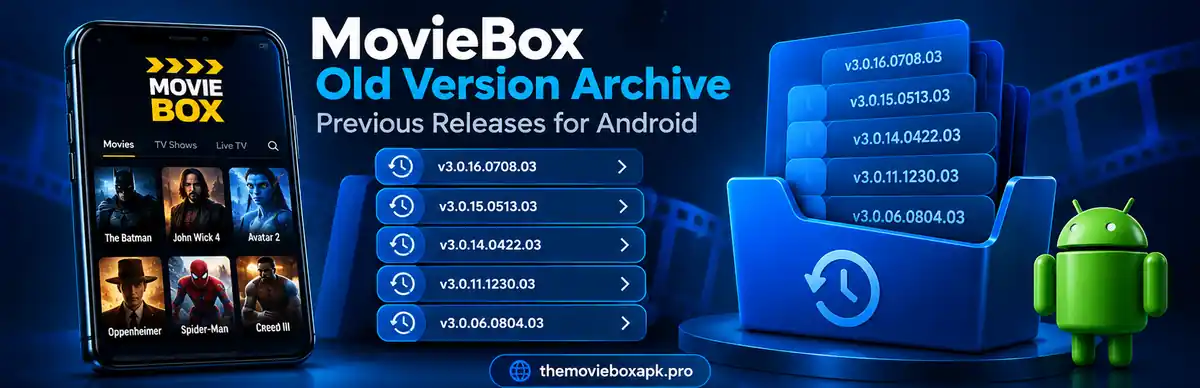
Before Installing an Older MovieBox APK
 Before Installing an Older MovieBox APK
Installing an older release is different from a normal update. Android may refuse to install an earlier build over a newer one because of version-code or signing differences. In some cases, the currently installed MovieBox app must be removed first, which can also remove locally stored app data.
Before changing versions, note which build you currently use and save anything inside the app that you do not want to lose. We will cover the downgrade process, installation conflicts, and compatibility checks step by step below.
Why Use an Older Version of MovieBox?
 Why Use an Older Version of MovieBox?
A newer MovieBox release is normally the first version to try, but an older build can make sense when the current release does not work properly on a particular Android device. The reason for switching should be compatibility or usability rather than assuming an older APK is automatically better.
The Latest Version Will Not Install
 The Latest Version Will Not Install
Android can reject an APK when the package conflicts with an existing installation, the version code is lower than the installed build, or the package is signed differently. If a newer MovieBox release cannot be installed or replaced normally, an earlier build may be worth testing after the existing installation has been handled correctly.
Performance on an Older Android Device
Some older phones have less memory, slower processors, or older Android versions. A previous MovieBox build may run differently on that hardware, although compatibility is never guaranteed simply because the APK is older.
Problems After a Recent Update
 Problems After a Recent Update
If crashes, loading problems, or interface issues begin immediately after changing to a newer release, returning temporarily to a previous version can help determine whether the problem is tied to that update or to the device itself.
Preference for an Earlier Interface
 Preference for an Earlier Interface
App layouts and navigation can change between releases. Users who are already familiar with an earlier MovieBox interface may prefer a previous build, provided it still works correctly on their device.
How to Choose the Right MovieBox Old Version
 How to Choose the Right MovieBox Old Version
Do not choose an APK only because it has the oldest or newest version number in the archive. Start with the reason you are changing versions and then select the closest previous build that matches your device and region.
Choose the Correct Regional Build
The archive above separates Global and India releases where different builds have been identified. Use the version intended for your region rather than switching between regional packages without a reason.
Check the Version Number Carefully
MovieBox uses long version identifiers, so similar releases can be easy to confuse. Compare the full version number shown on the button with the build you intend to install before downloading the APK.
Consider Your Android Version
An older MovieBox APK does not automatically mean support for every older Android release. The minimum Android requirement can differ between builds, so the device requirement should be checked when verified information for that specific APK is available.
Keep a Record of Your Current Version
Before downgrading, note the version currently installed on your device. If the older release performs worse or does not open correctly, knowing the previous version makes it easier to return to the build you were using.
How to Downgrade MovieBox on Android
A downgrade replaces a newer installed build with an earlier APK. Android may block a direct downgrade, so the process can require removing the current app before the older package can be installed.
After choosing a version, follow the Android steps to install MovieBox APK correctly.
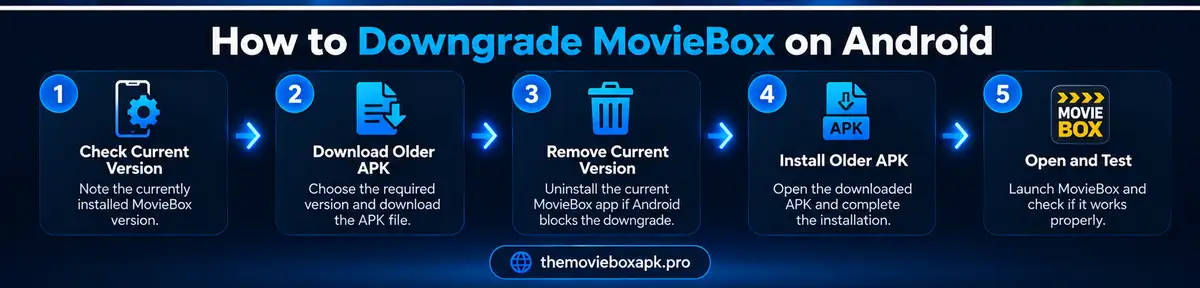
1. Note Your Current MovieBox Version
Open the Android app information screen or MovieBox settings, if the version is shown there, and note the currently installed build. Keep this information until you have confirmed that the older release works properly.
2. Download the Older APK First
Choose the required version from the archive and allow the APK to finish downloading before removing your current installation. This avoids being left without an installation file if the older package cannot be retrieved afterward.
3. Save Anything You Need
Removing an Android app can also remove locally stored app data. Save anything important that can be exported or restored before uninstalling the current MovieBox build.
4. Remove the Current Version if Android Blocks the Downgrade
Try the older APK only after confirming that you selected the intended build. If Android refuses to install it over the newer version because of a version or package conflict, uninstalling the current MovieBox installation may be necessary.
5. Install the Older MovieBox APK
Open the downloaded APK from your browser, Downloads folder, or file manager. If Android requests permission to install apps from that source, allow it for the app you are using to open the APK, then return to the installer.
6. Open and Test the Older Version
After installation, open MovieBox and check the functions that caused you to downgrade in the first place. If the older build crashes, cannot connect, or creates another compatibility problem, return to a newer supported release instead of repeatedly installing progressively older versions.
Common Problems With MovieBox Old Versions
 Common Problems With MovieBox Old Versions
Older APKs can solve a compatibility problem, but they can also create issues that do not appear on the current release. Most problems come from downgrade restrictions, package conflicts, unsupported Android versions, or an older build no longer working correctly with current services.
These archive files are Android APKs; Windows users should follow the Movie Box Mod APK for PC emulator setup instead.
App Not Installed
If Android shows an “App not installed” message, first check whether a newer MovieBox version is already installed. Android may refuse to replace a newer build with an older one directly.
If the older APK is the correct build and you have saved anything important, removing the current installation may be required before trying again.
Package Conflict
A package conflict can occur when the installed app and the older APK do not match as Android expects. This can involve version-code differences, signing differences, or an existing installation from another source.
Do not repeatedly install different APKs over one another. Confirm the version you want, then resolve the existing installation before continuing.
Older Version Opens but Does Not Work Properly
Successful installation does not guarantee that every feature in an old build will still work. Services used by the app can change over time, and an older release may no longer communicate correctly with them.
If the app installs but playback, loading, search, or other functions fail consistently, move back to a newer release rather than continuing to downgrade.
App Crashes After Opening
Crashes can come from device compatibility, damaged app data, an unsupported Android release, or an old build that no longer works correctly on the device.
Restart the app and device first. If the same version continues to crash after a clean installation, test a different supported build.
Android Blocks the APK
Android may require permission for the browser or file manager that is opening the APK. Enable installation from that specific source only when needed, install the selected APK, and review the permission afterward if you no longer need it.
MovieBox Old Version vs Latest Version
If you decide to return to the current build, use the Movie Box Mod APK latest version update process.
| Old MovieBox Version | Latest MovieBox Version | |
|---|---|---|
| Best for | Testing compatibility or returning to a previous build | Normal everyday use when it works correctly |
| Updates | Does not include changes added after that release | Includes newer changes and fixes |
| Older devices | May work differently on some older hardware | May have newer device or Android requirements |
| Downgrade issues | Can require removing a newer installed build first | Usually installs as a normal update when compatible |
| Service compatibility | Older features may stop working over time | More likely to match current app services |
| Recommended choice | Use when you have a specific reason to downgrade | Prefer when the current release works properly |
For most users, the latest working release should remain the first choice. Use an old version when you are solving a specific compatibility, installation, or usability problem rather than simply choosing an earlier version number.
If you want the current Android build instead, return to the Movie Box Mod APK homepage.
Frequently Asked Questions
 Frequently Asked Questions
What is a MovieBox old version?
A MovieBox old version is an earlier APK release that was available before the current build. Users may look for one when a newer release causes compatibility, installation, or interface problems on their device.
Which MovieBox old version should I download?
Choose the version that matches the problem you are trying to solve and, where applicable, the correct regional build. Start with the closest previous release rather than immediately choosing the oldest APK in the archive.
Can I install an older MovieBox APK over a newer version?
Sometimes Android blocks a direct downgrade. If the installer refuses the older APK because a newer build is already installed, you may need to remove the current version first. Removing an app can also remove locally stored app data.
Does an older MovieBox version work on every Android phone?
No. An older APK is not automatically compatible with every older Android device. Android requirements and device compatibility can vary between releases.
Why does an old MovieBox version install but not work?
Older builds can lose compatibility with current app services or with newer Android environments. Installation success only means Android accepted the APK; it does not guarantee that every app function will still operate.
Can I return to the latest MovieBox version later?
Yes. If an older release does not solve your problem, you can move back to a newer build. Depending on the installed packages and signatures, Android may treat that change as an update or require a fresh installation.
Will uninstalling MovieBox remove my data?
Android normally removes locally stored app data when an app is uninstalled. Save anything important that the app allows you to preserve before removing the current installation.
Conclusion
Movie Box Mod APK old versions are most useful when you have a specific reason to move away from the current release, such as an installation conflict, device compatibility problem, or unwanted change after an update.
Choose the required build carefully, keep a record of the version already installed, and avoid assuming that an older APK will automatically work better. If the current release works normally on your Android device, using the latest available build remains the simpler choice.