
How to Install MovieBox APK on Android
For the current Android download and file details, see the Movie Box Mod APK page.
Installing MovieBox APK on Android requires downloading the APK file, allowing installation from the app that opens it, and completing the Android installer.
You do not need to change every security setting on the phone. Android normally controls APK installation per source, so the permission should be enabled only for the browser, file manager, or other app you are using to open the MovieBox APK.
This guide covers the standard Android phone and tablet installation process. The separate MovieBox TV build uses a different setup intended for television devices.
MovieBox APK Installation Details
 MovieBox APK Installation Details
| App | MovieBox |
|---|---|
| Version | 4.0.03.0930.03 |
| File | moviebox-premium_v4.0.03.0930.03.apk |
| Size | 64 MB |
| Platform | Android |
| Android requirement | 8.0+ |
| Build label | Premium Unlocked |
| File checked | October 6, 2026 |
 Version
 File
File Size
Size Platform
 Build label
 File checked
The Android requirement shown here comes from the source information associated with this build and has not been independently confirmed from the APK manifest.
Before opening the installer, make sure the APK download has finished completely. An interrupted or incomplete file can cause an installation error even when the device itself is compatible.
What You Need Before Installing MovieBox
Before starting, check the following:
- an Android phone or tablet
- enough free storage for the APK and installation process
- the complete MovieBox APK file
- access to the browser, Downloads app, or file manager containing the APK
- permission to install apps from the source that opens the APK
You do not need root access for the normal Android APK installation process.
Where to Find the Downloaded MovieBox APK
 Where to Find the Downloaded MovieBox APK
Browser Downloads
If you downloaded MovieBox through Chrome or another browser, open the browser’s download list and select the completed APK.
Android Downloads Folder
Open the Files or file manager app and look inside the Downloads folder. The MovieBox APK should appear there after the download finishes.
Download Notification
Android may show a completed-download notification. Tapping that notification can open the APK directly in the package installer.
If the file does not open, use the Downloads folder instead and confirm that the APK finished downloading correctly.
Why Android May Block the MovieBox APK
 Why Android May Block the MovieBox APK
Android blocks APK installation from unapproved sources by default. This does not necessarily mean the APK itself is damaged. It means the browser or file manager opening the file has not yet been allowed to install apps.
Modern Android versions usually manage this permission per app. For example, if you open the APK from Chrome, Android may ask you to allow Chrome to install apps. If you open the same APK from a file manager, that file manager may need its own permission.
Only enable the permission for the app you are actually using to open the APK.
Before You Enable Install Unknown Apps
 Before You Enable Install Unknown Apps
Check which app is opening the APK before changing any setting.
If you downloaded the file with a browser but later opened it from a file manager, Android may request permission for the file manager rather than the browser. This is normal because the permission is tied to the app that launches the installer.
The exact menu names can differ slightly between Android versions and phone manufacturers. The important setting is the permission that allows the selected source to install unknown apps.
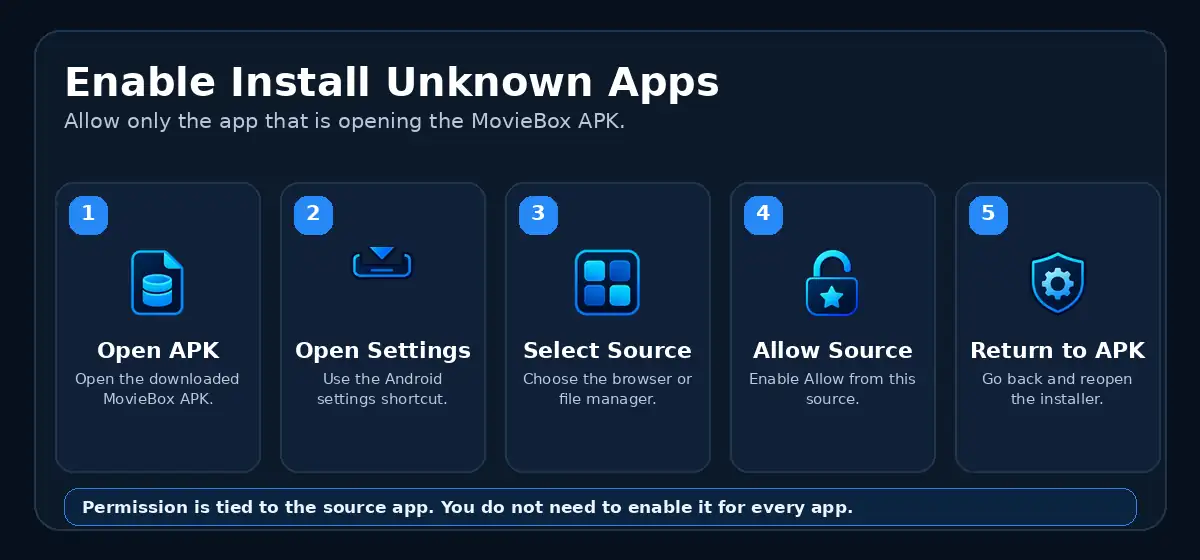
How to Enable Install Unknown Apps on Android
Android only needs installation permission for the app that opens the APK. You do not need to enable unknown-app installation for every app on the device.
How to Install MovieBox APK on Android
 How to Install MovieBox APK on Android
Once Android allows the source to install apps, the remaining installation process is straightforward.
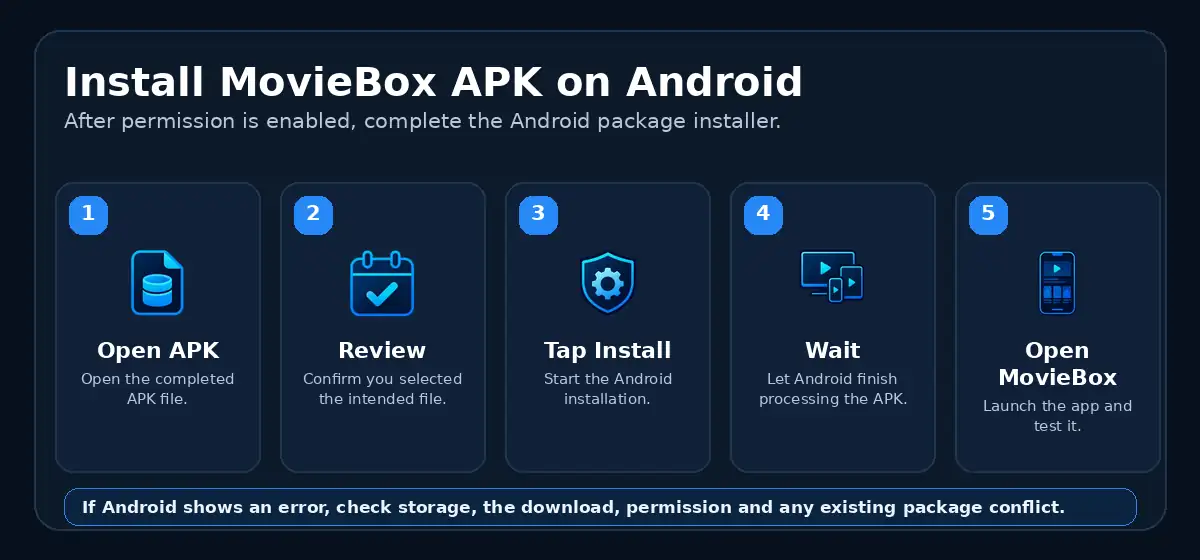
1. Open the Downloaded APK
Locate the MovieBox APK in your browser downloads, Downloads folder, or file manager and open it.
Android should display the package installer.
2. Review the Installation Screen
Check that you are installing the intended MovieBox APK.
The installer may show the app name and whether you are installing a new app or replacing an existing build.
3. Tap Install
Choose Install and wait while Android processes the APK.
Do not close the installer or restart the device while the installation is in progress.
4. Wait for Installation to Finish
Android will show a confirmation when MovieBox has been installed.
If the installer displays an error instead, do not keep tapping Install repeatedly. Check the troubleshooting section later in this guide.
5. Open MovieBox
Tap Open after installation, or launch MovieBox from the Android app drawer.
The first launch may take slightly longer while the app creates local data and loads its interface.
Should You Disable Install Unknown Apps Afterward?
If you only enabled the permission to install MovieBox, you can turn it off again after the installation is complete.
Return to the same Install unknown apps setting and disable Allow from this source for the browser or file manager you used.
This does not uninstall MovieBox. It only removes that app’s permission to start future APK installations.
What Happens If MovieBox Is Already Installed?
 What Happens If MovieBox Is Already Installed?
If another MovieBox build is already installed, Android may treat the APK as an update rather than a fresh installation.
When the package and signing information are compatible, Android can replace the existing version without requiring you to uninstall it first.
If Android reports a package conflict, signing mismatch, or installation error, the existing installation may need to be handled separately. Do not uninstall immediately if you have locally stored data you want to keep.
If you are replacing an existing build, check the Movie Box Mod APK update process before uninstalling the current app.
After Installing MovieBox
 After Installing MovieBox
Once the app opens, check that the installation completed successfully.
- MovieBox opens without immediately closing
- the interface responds normally
- movie and TV sections load
- playback opens
- navigation works
- downloads work if you use offline viewing
If the app installs but does not function correctly, the problem may be compatibility, app data, network access, or the specific build rather than the installation permission itself.
Common MovieBox APK Installation Problems
An APK can fail to install even when the download itself appears complete. The most common causes are an incomplete file, insufficient storage, installation permission, an existing package conflict, or device compatibility.
If the APK installs successfully but the MovieBox app not working problem continues, troubleshoot the installed app rather than repeating the installer.
App Not Installed
If Android shows “App not installed”, first check that the APK finished downloading and that the device has enough free storage.
If those checks are fine, another MovieBox installation may be conflicting with the APK. Do not uninstall the existing app immediately if it contains data you want to keep.
Installation Permission Is Blocked
If Android sends you back to settings or refuses to start the installer, check the “Install unknown apps” permission for the browser or file manager opening the APK.
Enable “Allow from this source” for that app, then return to the downloaded MovieBox APK.
APK Will Not Open
If tapping the APK does nothing, open the file from the Android Downloads folder or a file manager instead.
If the file still does not open, delete it and download the APK again in case the original download was incomplete.
Package Conflict
Android may block installation when another MovieBox build is already installed and the new APK cannot replace it normally.
This can happen because of package, version, or signing differences. If you eventually need to remove the installed build, save anything important first because uninstalling can remove locally stored app data.
Not Enough Storage
The APK file size is not the only space Android needs during installation.
Free some storage if the device is nearly full, then reopen the APK and try again.
Device or Android Version Is Not Compatible
The build currently used on this site is source-listed for Android 8.0+. That requirement has not been independently confirmed from the APK manifest.
If the device runs an older Android release, or the APK does not support the device architecture or environment, installation or launch can fail.
MovieBox Installs but Closes After Opening
If installation completes but MovieBox immediately closes, restart the device and try the app again.
If the problem continues, it may be caused by compatibility, app data, or the specific build rather than the APK installation permission.
What to Do After a Failed Installation
Do not repeatedly tap Install without changing anything.
If a newer build is causing compatibility problems, the movie box mod apk old version download archive provides previous releases.
- confirm the APK finished downloading
- confirm there is enough free storage
- check installation permission for the source opening the APK
- restart the Android device
- try opening the APK from the Downloads folder or file manager
- check whether another MovieBox installation is creating a conflict
If the same APK continues to fail after these checks, the problem may be compatibility or the existing installation rather than the download process itself.
How to Confirm MovieBox Installed Correctly
After Android reports that installation is complete, open MovieBox and check the basic functions before deleting the downloaded APK.
- the app opens normally
- the home interface loads
- navigation responds
- movie and TV sections open
- playback starts
- downloads open if you use offline viewing
You can also check the Android app information screen to confirm that MovieBox now appears in the installed-app list.
Frequently Asked Questions
 Frequently Asked Questions
How do I install MovieBox APK on Android?
Download the MovieBox APK, open the completed file, allow installation from the browser or file manager opening it if Android requests permission, and then complete the Android package installer.
Do I need to enable Unknown Sources for every app?
No. Modern Android versions normally control APK installation per source. Enable the permission only for the browser, file manager, or other app you are using to open the APK.
Does MovieBox APK require root access?
No. Root access is not required for the normal Android APK installation process.
Why does Android say App not installed?
The error can be caused by an incomplete APK, insufficient storage, a package conflict, signing differences, or device compatibility. Check the download, storage, and existing installation before trying again.
Can I install MovieBox over an existing version?
Android may treat the APK as an update when the installed app and the new package are compatible. If Android reports a package or signing conflict, a normal replacement may not be possible.
Can I turn off Allow from this source after installation?
Yes. Disabling the permission afterward does not remove MovieBox. It only prevents that browser or file manager from starting future APK installations until permission is enabled again.
Why does MovieBox install but not open?
If the app installs but immediately closes or fails to load, the problem may be compatibility, app data, Android environment, or the specific APK build rather than the installation permission.
Conclusion
Installing MovieBox APK on Android is a normal sideloading process: download the complete APK, allow installation from the app opening the file, and complete the Android installer.
Enable installation permission only for the source you are using, confirm that the app works after installation, and troubleshoot the download, storage, permission, or existing package before removing another MovieBox installation.