
How to Update MovieBox APK on Android: Simple Steps
To update MovieBox APK on Android, download a compatible newer version and install it over the existing app. This usually preserves your settings, downloads, and other local data without requiring you to uninstall MovieBox first. You can get the latest Movie Box Mod APK from our download page and follow the steps below to complete the update.
You should not uninstall MovieBox automatically before every update. Removing the current app can also remove locally stored data, so try the normal update first and investigate any installation error before considering a clean install. The checks below also help when an update notice keeps returning inside MovieBox.
Current MovieBox Android Build
 Current MovieBox Android Build
This guide covers the Android phone build; television devices use the separate Movie Box Mod APK for TV setup.
| Version | 4.0.03.0930.03 |
|---|---|
| File | moviebox-premium_v4.0.03.0930.03.apk |
| Size | 64 MB |
| Android | 8.0+ |
| Build label | Premium Unlocked |
| Information reviewed | November 2026 |
 Version
 File
 Android
 Build label
 Information reviewed
The Android requirement above is based on the source information currently associated with this build. It has not been independently verified from the APK manifest.
Before You Update MovieBox
 Before You Update MovieBox
Before installing a newer MovieBox APK, check the version already installed and make sure the new file has finished downloading completely. A failed or interrupted APK download can look like an update problem even when the existing app is working normally. Look for the installed version in Android’s app information screen for MovieBox, or inside the app if it displays a version. The menu names and location vary by device.
If MovieBox contains anything you do not want to lose, save or export it first where possible. A normal in-place update is designed to preserve app data, but a clean installation can remove locally stored information. Backup and export options depend on the build; do not assume that saved downloads or settings can always be restored.
Also make sure the device has enough free storage for both the APK file and the installation process.
Do You Need to Uninstall MovieBox Before Updating?
 Do You Need to Uninstall MovieBox Before Updating?
In most cases, no. Try installing the newer APK over the existing MovieBox installation first.
If Android accepts the package as an update, the new version can replace the older build without requiring you to remove the app manually.
Uninstalling may become necessary when Android reports an installation conflict, package mismatch, signing difference, or another problem that prevents the newer APK from replacing the current build.
If you uninstall MovieBox, locally stored app data may also be removed. That is why a clean installation should be the fallback, not the first step.
Normal Update vs Clean Install
 Normal Update vs Clean Install
Normal Update
Use a normal update when Android accepts the newer APK over the version already installed.
This is the preferred method because it can preserve the existing installation and app data while replacing the older application files.
Clean Install
Use a clean installation when the newer APK cannot be installed over the current version because of a package, signing, or installation conflict.
A clean install means removing the existing MovieBox app and then installing the newer APK again. Because uninstalling an Android app can remove its locally stored data, save anything important before using this method.
Android normally accepts a replacement only when both APKs use the same application ID, the signing certificate matches or has a valid signing lineage, and the new version code is not lower.
The version code is an internal number, separate from the version name shown in app settings. A matching visible version name alone does not establish update compatibility. These are Android platform requirements, not properties independently checked for the MovieBox APK linked here.
What to Check Before Installing the New APK
Check these items before starting the update:
- you know which MovieBox version is currently installed
- the new file is the build you intended to install
- the APK finished downloading completely
- the device has enough free storage
- anything important has been saved where possible
- installation permission is available for the browser or file manager opening the APK
These checks help separate a genuine update conflict from a damaged download, storage problem, or Android installation-permission issue. If you need help opening the APK or allowing that source, follow the MovieBox installation guide.
How to Update MovieBox APK on Android
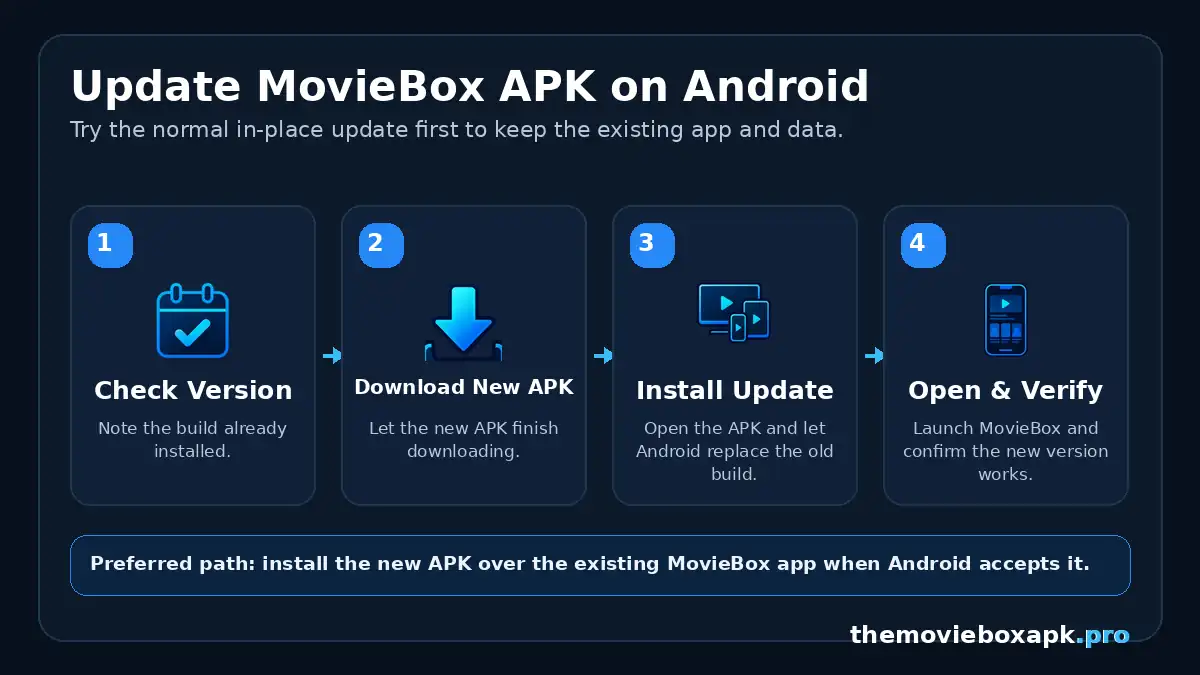
The safest approach is to try the normal update first. If Android accepts the newer APK, you can usually replace the installed version without removing the app manually.
1. Check Your Current MovieBox Version
Before installing anything, note the MovieBox version already installed on your device.
You can check this from the Android app information screen or inside MovieBox if the version is shown there. Keeping a record of the current build makes it easier to confirm that the update actually changed the installed version. Compare it with the intended APK. If that version is already installed, repeatedly reinstalling the same file may not resolve an update prompt.
2. Download the New MovieBox APK
Use the download button near the top of this page and allow the APK to finish downloading completely.
Do not try to install a partially downloaded file. If the browser or download manager reports an error, delete the incomplete APK and download it again.
3. Open the Downloaded APK
Open the APK from your browser, Downloads folder, or file manager.
Android will compare the new package with the MovieBox version already installed on the device. An update notice inside MovieBox is separate from this Android installation screen; opening the notice or downloading a file does not complete an installation.
4. Allow Installation From the Source if Needed
If Android blocks the installer because the browser or file manager does not have permission to install apps, open the permission for that specific source.
Enable “Allow from this source”, then return to the APK installer.
You do not need to enable installation permission for unrelated apps.
5. Install the Update
Follow Android’s installation screen. It may say “Update” or “Install”; the label alone does not prove that the intended app is being replaced. Confirm the result and installed version after installation.
Wait until the installation completes before opening MovieBox.
6. Open MovieBox and Confirm the Update
Launch MovieBox after installation and confirm that it opens normally.
Check the installed version again if the app or Android settings display it. Also test the main functions you normally use before deleting the downloaded APK. Check that important settings and saved downloads remain available where applicable; a completed installer screen does not establish that every app feature works.
What If Android Will Not Install the Update?
If Android refuses the newer APK, do not immediately keep retrying the same file. The message can point to a package conflict, signing difference, damaged download, insufficient storage, or another installation problem.
Start with the simplest checks first.
Check the APK Download
Make sure the APK finished downloading and that the file matches the build you intended to install.
An incomplete or damaged file can fail before Android even reaches the normal update process.
Check Available Storage
Android needs enough free space to store the APK and complete the installation.
Free some storage if the device is nearly full, then try the update again.
Restart the Device
A restart can clear a temporary installer or storage issue.
After the device starts again, open the same APK and retry the update once.
Check for an Existing Package Conflict
If MovieBox was previously installed from a different package source or uses a different signing key, Android may refuse to replace it with the new APK.
Read the exact error and use the Package Conflict or Signature Error explanation below before deciding whether removal is necessary. Consider the data-loss precautions before using the clean-install fallback.
How to Perform a Clean MovieBox Update
Use this method only when the normal update fails after the simpler checks. A clean installation does not guarantee a fix if the file or device is incompatible.
A clean update removes the currently installed MovieBox app first and then installs the newer APK as a fresh installation.
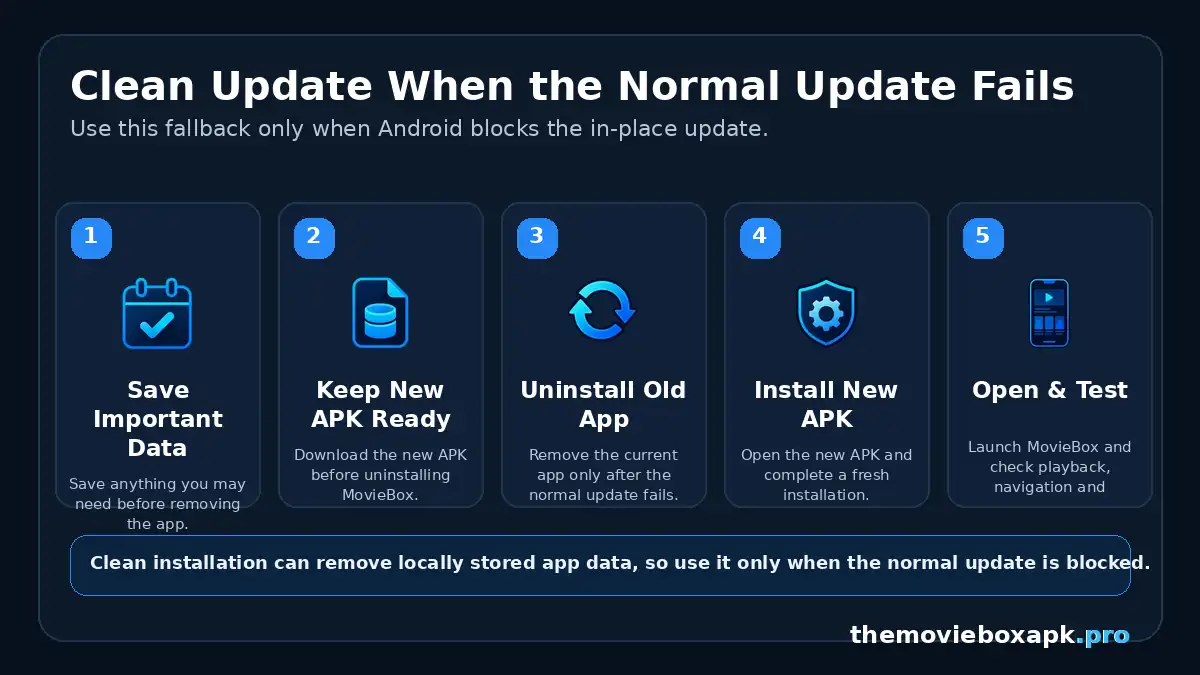
1. Save Anything Important
Before uninstalling MovieBox, save anything that can be exported or restored later.
Uninstalling an Android app can remove locally stored app data. Settings and saved downloads may be lost; export or account-based recovery is available only if that build supports it. Check what can actually be restored before proceeding.
2. Keep the New APK Ready
Make sure the newer MovieBox APK is already downloaded before removing the current app.
This prevents you from being left without an installation file after uninstalling.
3. Uninstall the Existing MovieBox App
Open the Android app settings, select MovieBox, and choose “Uninstall”.
Wait until Android confirms that the app has been removed.
4. Install the New APK
Open the newer MovieBox APK from your Downloads folder, browser, or file manager.
If Android requests installation permission for that source, allow it and return to the installer.
Choose “Install” and wait for the process to finish.
5. Open and Test MovieBox
Open MovieBox after installation and confirm that the app starts normally.
Check playback, navigation, downloads, or any other function that previously caused the update problem.
Normal Update or Clean Install: Which Should You Use?
 Normal Update or Clean Install: Which Should You Use?
Use a normal update when Android accepts the newer APK over the current installation. This is the preferred method because it avoids unnecessary removal of the existing app.
Use a clean install only when the normal update fails because of a package, signing, or installation conflict.
If both methods fail with the same APK, the problem may be the file, device compatibility, or Android environment rather than the existing installation.
Common MovieBox Update Problems
Even when the APK is correct, Android can stop an update for several reasons. The most common problems are package conflicts, incomplete downloads, storage limits, installation permissions, or a mismatch between the installed app and the new APK.
Start with the message you see. An Android installation error and a notice shown after MovieBox opens need different checks.
App Not Installed
If Android shows “App not installed”, first confirm that the APK finished downloading and that the device has enough free storage.
If those checks pass, read the complete error and consider device compatibility as well as package and signing conflicts. Use the clean-install fallback only after identifying a replacement conflict and considering what local data could be lost.
Update Option Does Not Appear
Android may show “Install” instead of “Update” depending on the package state and device version.
The button text alone does not establish whether the intended MovieBox installation will be replaced. Let Android finish, read the result, and compare the installed version with the APK you chose. If the old build remains, return to the installation error instead of assuming the update succeeded.
Package Conflict or Signature Error
A signing or package mismatch can prevent Android from replacing the installed build.
A MovieBox Premium or MOD APK update can still fail if its signing information differs from the installed build. The label does not guarantee compatible packages. A different download source does not by itself prove a mismatch either; Android checks package identity, signing and version code. If a replacement conflict remains, a clean install may be necessary, with the data-loss precautions above.
APK Will Not Open
If the downloaded file does not open, try opening it from the Downloads folder or a file manager instead of the browser.
Also check whether that app has permission to install packages from unknown sources. If Android reports an invalid package rather than a permission request, return to the download-completeness and compatibility checks. Changing installation permission cannot repair an invalid APK.
Update Finishes but MovieBox Will Not Open
Fully close MovieBox, reopen it and restart the device if necessary.
If installation completed but the app still crashes or closes immediately, the cause may involve app data, Android compatibility or the build itself. Use the MovieBox not working guide before clearing data or uninstalling. These are post-installation app problems; a clean install is a fallback for a diagnosed conflict, not a guaranteed repair.
MovieBox Keeps Asking to Update
An update notice inside MovieBox is separate from Android’s installer. Seeing it again does not establish whether the intended APK replaced the existing app.
- Check the installed version in Android’s app information screen, or inside MovieBox where available. Compare it with the build you intended to install.
- Confirm that Android reported the installation completed. Downloading the APK, opening an in-app notice or stopping at a permission screen does not finish an update.
- If the previous version remains, review the installer result and the earlier update steps. Do not uninstall solely because the notice returned.
- If the intended version is installed, fully close and reopen MovieBox. Restart the device once if necessary, then check whether the prompt returns.
- If the prompt returns immediately despite the intended installed version, note the message and version. An app-side update requirement is possible; this differs from Android refusing an installation.
A returning notice may reflect an installation that did not replace the old build, a version mismatch or an app-side requirement. These are possible explanations, not a diagnosis or a guaranteed fix. Avoid repeated uninstall/reinstall cycles, and do not bypass mandatory update checks or weaken Android security.
How to Check That MovieBox Updated Successfully
Do not assume the update worked only because the installer completed.
- confirm Android reported that installation completed
- confirm the app starts normally
- check the installed version if it is shown in Android settings or inside the app
- test navigation
- open a movie or TV section
- test playback
- check downloads if you use offline viewing
- confirm that important app data is still present
If the APK you chose is the build currently provided by this site, compare the installed version with:
4.0.03.0930.03
If the displayed version differs from the intended build, check the installer result and confirm that you opened the correct MovieBox installation. If you reinstalled the same visible version, an unchanged number alone does not prove failure; check the installation result and app behavior together.
Should You Update MovieBox Every Time a New APK Appears?
Not necessarily.
If the version already installed works correctly, there is usually no reason to replace it immediately just because another APK is available.
An update is more useful when it adds a change you need, improves compatibility, fixes a problem affecting your device, or replaces a build that no longer works properly. Release information may also identify important security fixes, so leaving a functioning app unchanged indefinitely is not automatically the safer choice. No specific fix is claimed for the APK listed here.
Before changing versions, check that the new APK is intended for the same Android app and that you have a reason to install it.
If the problem started after a newer build, read the MovieBox old versions guide for downgrade considerations before making additional changes. That guidance does not mean an older APK is available to download from this site.
Frequently Asked Questions
 Frequently Asked Questions
How do I update MovieBox APK on Android?
Download the newer MovieBox APK and open it on the Android device where MovieBox is already installed. If Android recognizes the package as a compatible update, complete the installation without uninstalling the existing app.
Do I need to uninstall MovieBox before updating?
Usually no. Try the normal update first. Uninstall the existing app only if Android refuses to install the newer APK because of a package, signing, or installation conflict.
Will updating MovieBox delete my data?
A normal in-place update is intended to keep the existing application data. A clean installation requires uninstalling the current app, which can remove locally stored data.
Why does Android say App not installed when I update MovieBox?
The error can be caused by an incomplete APK, insufficient storage, package conflict, signing mismatch, or another compatibility problem. Check the file and storage first, then use a clean install only if the existing installation is blocking the new APK.
Can I install an older MovieBox version after updating?
Yes, but Android may block a direct downgrade. Installing an older build can require removing the newer version first, and uninstalling can remove locally stored app data.
How can I check my MovieBox version after updating?
Look in the Android app information screen or inside MovieBox if the app displays its version. Compare the installed version with the build you intended to install.
What should I do if MovieBox stops working after an update?
Restart the device, confirm the installed version and check compatibility. Follow the post-update troubleshooting guidance above before removing data. A clean installation or downgrade may be considered after simpler checks, but either can involve data loss and neither guarantees a repair.
Why does MovieBox keep asking me to update?
Check that Android finished installing the intended build and compare its installed version with the file you chose. Close and reopen MovieBox, then restart the device if needed. A returning prompt can reflect a version mismatch or an app-side requirement; repeatedly uninstalling the app may lose data without resolving the cause.
Conclusion
Updating MovieBox APK on Android should normally start with an in-place update rather than uninstalling the existing app. Download the correct APK, open it on the same device, and let Android replace the current build if the package is accepted.
Use a clean installation only when the normal update fails because of a package, signing, or installation conflict. Before uninstalling anything, save important data where possible and keep the new APK ready so you can reinstall MovieBox immediately.