
How to Watch MovieBox on TV From an Android Phone
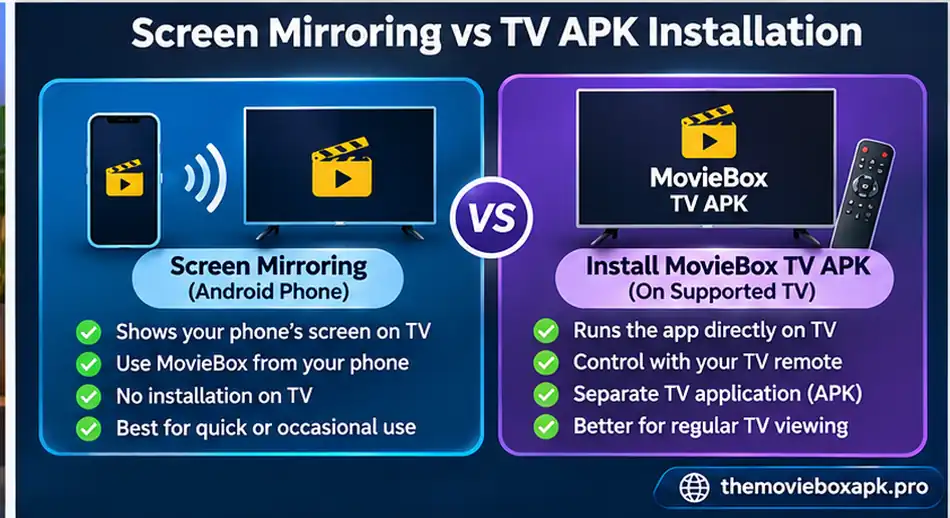
To watch MovieBox on a TV from your Android phone, you can try mirroring the phone’s screen to a compatible TV or streaming receiver. MovieBox keeps running on the phone, so you still use the phone to choose a title and control playback. If you need the Android package first, see our Movie Box Mod APK page.
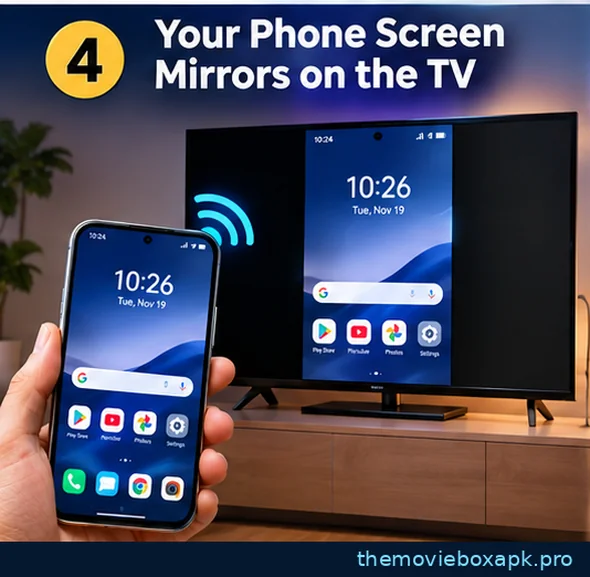
Connect the phone and receiver to the same Wi-Fi network, start screen mirroring, then open MovieBox and test a video. Seeing the phone’s home screen on the TV confirms the connection, but it does not prove the video and sound will play there. We have not verified TV playback for this site’s MovieBox build, so check your own setup before relying on it.
Screen Mirroring vs Installing the MovieBox TV APK
Mirror the Android phone
Mirroring copies your phone’s display to a compatible receiver. MovieBox stays on the phone, which you use to browse, pause, and select a title. Keep the phone connected while watching. Anything else visible on its screen, including notifications, may also appear on the TV. You still need to check whether moving video and audio come through.
Install the separate TV APK
On compatible Android-based TV hardware, a separate TV APK runs directly on the television or streaming device and is navigated with its remote. Our MovieBox TV APK guide covers that route. Transferring an APK file from a phone to a TV only moves the installer; it does not mirror the phone’s screen.
What about an in-app Cast button?
An in-app Cast feature, if available, would send playback to a receiver instead of copying the whole phone display. We have not verified that control in the MovieBox Android build offered here. The steps below use Android screen mirroring rather than a presumed MovieBox menu.
What You Need Before Mirroring
Check the setup before opening MovieBox:
- Android phone: Google’s screen-casting method in Google Home requires Android 8.0 or newer. Have Google Home available and allow Google Play services microphone permission for this method.
- Compatible receiver: Use a TV or attached Google streaming device that supports screen mirroring through Google Home. A “smart TV” label alone does not establish that support. If you use an external device, turn it on and select its HDMI input on the TV.
- Same Wi-Fi: Connect the phone and receiver to the same network so Google Home can find the device.
- Phone and room ready: Keep the phone charged, set a comfortable TV volume, and use Do Not Disturb if you do not want notifications appearing on the TV.
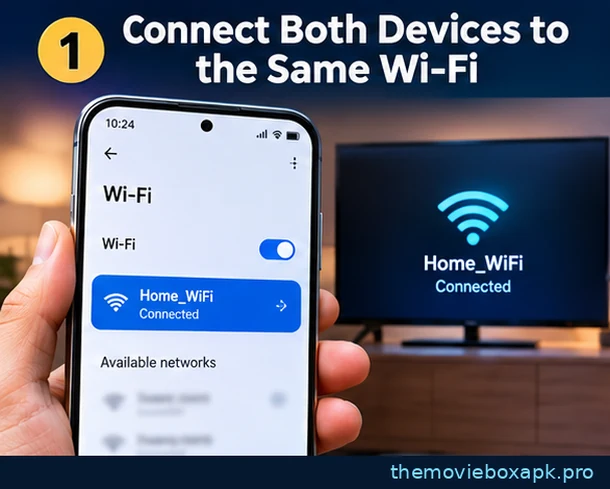
If your receiver does not show up in Google Home, check its setup and network before changing anything in MovieBox. Phone manufacturers may also provide different screen-sharing controls, so the exact labels can vary.
How to Mirror Your Android Phone
Use Google Home With a Compatible Receiver
Google Home’s screen-casting controls belong to Android, not MovieBox. Use this method when your compatible receiver appears in the Google Home app:
- Turn on the TV and receiver. If the receiver is external, switch the TV to its HDMI input. Confirm that the receiver and phone use the same Wi-Fi network.
- Open Google Home on the phone. Under Favorites or Devices, find the receiver you want to use.

Choose the compatible TV receiver in Google Home. - Touch and hold its tile. Google’s documented controls are Cast, Cast my screen, then Cast screen. Follow the labels displayed on your phone.

Use the available Google Home screen-sharing controls and confirmation prompt. - Review and accept Android’s screen-sharing prompt. Wait for the phone’s home screen to appear on the TV. At this point, you have confirmed the mirroring connection, not MovieBox playback.
- Open MovieBox on the phone. Check whether its browsing screen appears on the TV, then start a title that plays on the phone.
- Check the TV for moving video and listen for audio. Use the separate checks in the next section before settling in to watch.
- When finished, return to the receiver tile in Google Home and choose Stop mirroring. Confirm that your phone is no longer displayed on the TV.
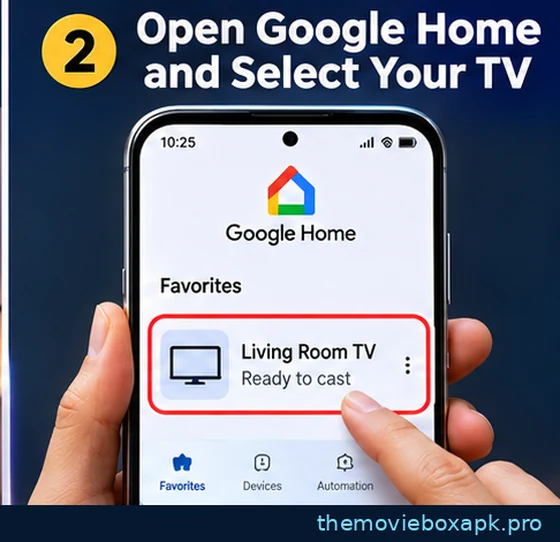
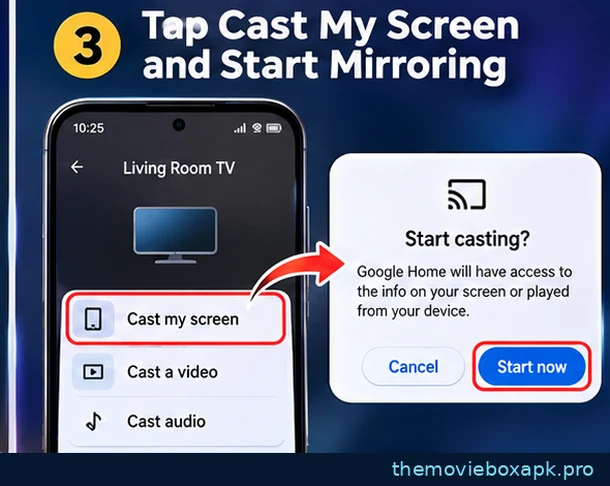
Google’s Android screen-casting instructions provide the current Google Home controls. App and device versions may use slightly different labels.
Use a Phone Screen-Share Shortcut, If Available
Some Android phones have a Cast, Screen Cast, or manufacturer-named tile in Quick Settings. Swipe down from the top of the phone screen, open the available screen-sharing control, and select the TV or receiver if it appears. Follow the phone’s connection prompt, then check the phone screen and MovieBox playback as described below.
The shortcut may use a different receiver technology from Google Home, so its presence does not guarantee that your TV can connect. It is a phone feature, not a MovieBox player button.
Check MovieBox Picture and Sound on the TV
Test the connection in stages. A visible phone screen is only the first result; check the app, video, and sound separately.
1. Does the phone screen appear?
Look for your Android home screen on the TV. If it does not appear, check the receiver, TV input, and mirroring connection before troubleshooting MovieBox.
2. Can you see MovieBox’s interface?
Open MovieBox on the phone and look for its browsing screen on the TV. Seeing menus confirms that the app’s general display reaches the TV, but it does not yet establish video playback.
3. Does moving video appear?
Start a title that plays normally on the phone. Watch the TV for moving scenes rather than a poster, loading screen, or still frame. If the TV goes blank when playback begins, note that the phone may still be mirroring even though the video is not visible there.
4. Can you hear the audio?
Listen through the speaker output you intend to use. If moving video appears but sound does not, check the TV volume and where the phone is sending audio. Picture alone is not a complete playback check.
5. Is the connection usable?
Watch briefly to see whether the picture and sound continue, playback controls respond, and the connection stays active. If the video looks cramped, rotate the phone to landscape and check whether the TV view follows. The result can vary by phone, receiver, app build, and title; a working Android mirror connection does not guarantee every MovieBox video will play on the TV.
If MovieBox Does Not Appear or Play Correctly on Your TV
Find where the problem starts: device discovery, the mirrored phone screen, MovieBox video, or sound. Each result calls for a different check.
The TV does not appear in Google Home
If Google Home does not list your TV or streaming receiver, check the connection before changing MovieBox settings:
- Confirm that the TV or attached device supports the Google Home screen-mirroring method. Some smart TVs use another screen-sharing technology.
- Check that the receiver is powered on and that the phone and receiver use the same Wi-Fi network.
- If the receiver is external, select its HDMI input on the TV.
- Look again under Favorites or Devices in Google Home. If the receiver still does not appear, consult its setup instructions; restarting the phone or receiver may help with a temporary discovery problem.
A missing receiver does not establish that MovieBox itself is malfunctioning.
The phone screen appears, but the video is black
If the TV shows the Android home screen or MovieBox menus but goes black when a video starts, the mirroring connection may still be active. Test the same title directly on the phone. If it plays there, check whether ordinary phone screens still appear on the TV and whether the black picture happens with other titles. You can also try mirroring another app that normally displays on your phone to help separate a general connection problem from a video-specific one.
The symptom alone cannot identify the cause. Phone, receiver, app, and video-output behavior can all affect the result, and we have no confirmed MovieBox-specific setting that fixes a black TV picture. Do not assume that reinstalling the app or changing device protections will solve it. If playback also fails on the phone, use our MovieBox Not Working guide for that separate problem.
Video appears, but there is no sound
Check the TV and phone media volumes, then see whether audio is still coming from the phone, Bluetooth headphones, or another connected device. If your phone offers an audio-output selector, check the available choices rather than assuming sound moved to the TV. Play a short scene with audible dialogue after each relevant change. Audio routing varies across phones and mirroring methods, so changing volume alone may not resolve every case.
Video lags or freezes
Compare the same playback on the phone and TV. If both pause or buffer, the issue may involve the underlying stream or network connection. If the phone plays smoothly while the TV lags, the screen-sharing connection may be contributing. Check Wi-Fi stability, move closer to the router if the signal is weak, reduce heavy background activity, and keep the phone charged. These checks can help identify the bottleneck but do not guarantee smooth playback with every receiver.
Mirroring disconnects while watching
Check that the phone remains on the intended Wi-Fi network, the receiver is powered and connected, and the TV still shows its input if you use an external device. See whether Google Home still lists the receiver and whether the screen-sharing session has stopped. If the receiver is available, reconnect, confirm that the phone screen appears, and only then test video and audio again. A dropped mirroring session does not by itself identify a MovieBox problem.
When the TV app may be more practical
Mirroring keeps the phone involved throughout viewing. If you want to navigate with a TV remote and have compatible Android-based TV hardware, the separate TV APK route described earlier may suit you better. It is a different setup, not a guaranteed fix for mirroring problems.
Frequently Asked Questions
Can I cast MovieBox directly to my TV?
You can try displaying it by mirroring your Android phone to a compatible receiver. A native Cast button in the specific MovieBox build covered here has not been verified. After connecting, test whether the video and sound actually reach the TV.
Why does my phone screen show on the TV but not the movie?
The home screen confirms that mirroring started, but video output is a separate check. Test the same title on the phone and see whether ordinary phone screens still appear on the TV. A black TV picture does not prove there is a hidden MovieBox setting to change.
Can I use MovieBox with any smart TV?
No. The TV or attached receiver must support a mirroring method compatible with your phone. For the Google Home steps above, use a compatible Google streaming receiver. Check the TV maker’s documentation if it uses another method.
Do I need to install MovieBox on the TV to mirror my phone?
No. The app runs on your phone during mirroring. Installing the separate TV APK is an alternative only for compatible Android-based TV hardware.
Will MovieBox continue playing if I stop screen mirroring?
Stopping mirroring ends the TV’s view of your phone screen. MovieBox may remain open on the phone, but whether playback continues there depends on the app’s state. Do not expect the TV to keep showing the video after the screen-sharing session ends.
Watching MovieBox on a Bigger Screen
Start by connecting the phone to a compatible receiver. Once the phone screen appears on the TV, check MovieBox’s interface, moving video, sound, and connection stability. A working Android mirror connection alone does not confirm that every title will play on the TV.
For occasional viewing, mirroring may be useful when the actual playback test works. If you prefer a remote-controlled experience and have compatible Android-based TV hardware, the separate TV app is another route. Choose the method that fits your devices and the result you can confirm.