
How to Change Subtitles in MovieBox on Android
To change subtitles in MovieBox on Android, play a title and look for a subtitle or CC option in the player controls. If your player shows one, open it and choose a language available for that title. Watch a short stretch of dialogue to check that captions appear. The control and language choices may differ by title or app version; an Off option is useful only if your player actually offers it.
If you are looking for the Android app rather than its caption controls, our Movie Box Mod APK page covers the current package details.
The examples below show where to look. Follow the options on your own screen if they differ.
Quick Steps to Change Subtitles
- Start a movie or episode in MovieBox.
- Tap the video to reveal player controls, if needed.
- Look for Subtitles, Captions or CC, if available.
- Choose a language from the options listed for that title.
- Return to playback and check the captions during spoken dialogue.
To disable captions, look for Off or None among the available choices.
Find Subtitle Controls While Watching
Open a movie or episode and start playback. If the controls have disappeared, tap the video once to see whether the player reveals them. Look for a control labeled Subtitles, Captions or CC. Some players put language choices behind a settings icon instead, so use the labels you can actually see rather than relying on a fixed button position.
If you cannot find any caption control, do not assume that a hidden menu exists. The player, title or resource you are using may offer different options. Check the available controls before trying another title.
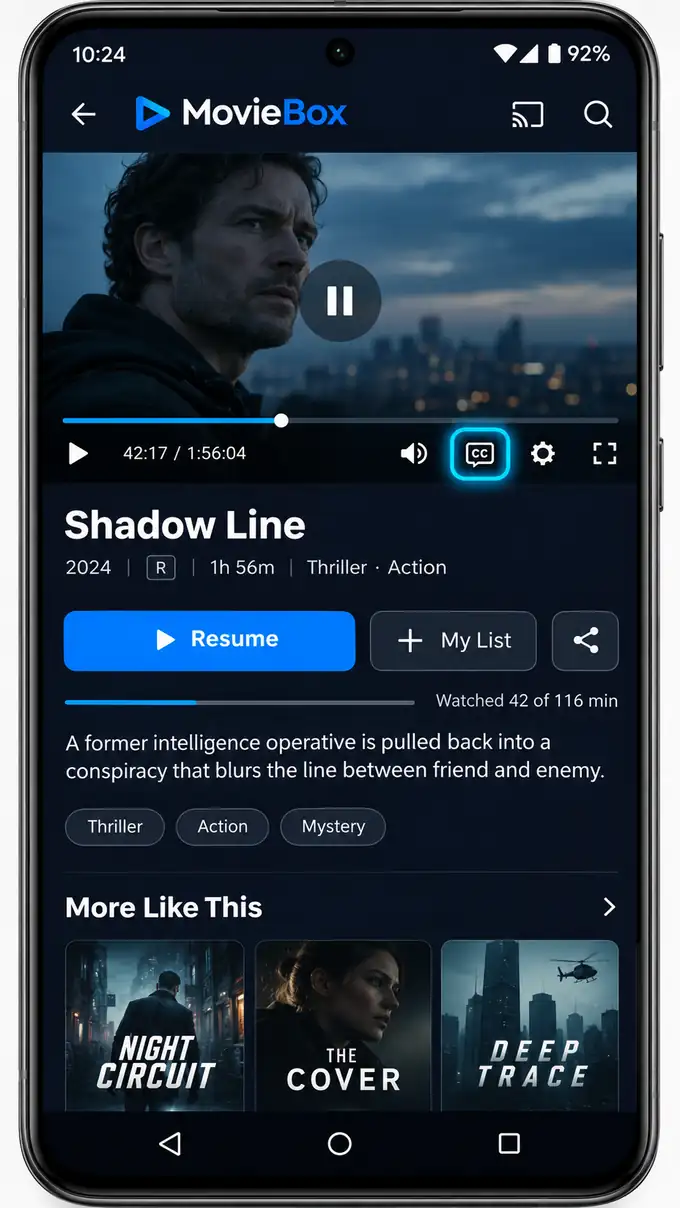
Choose an Available Subtitle Language
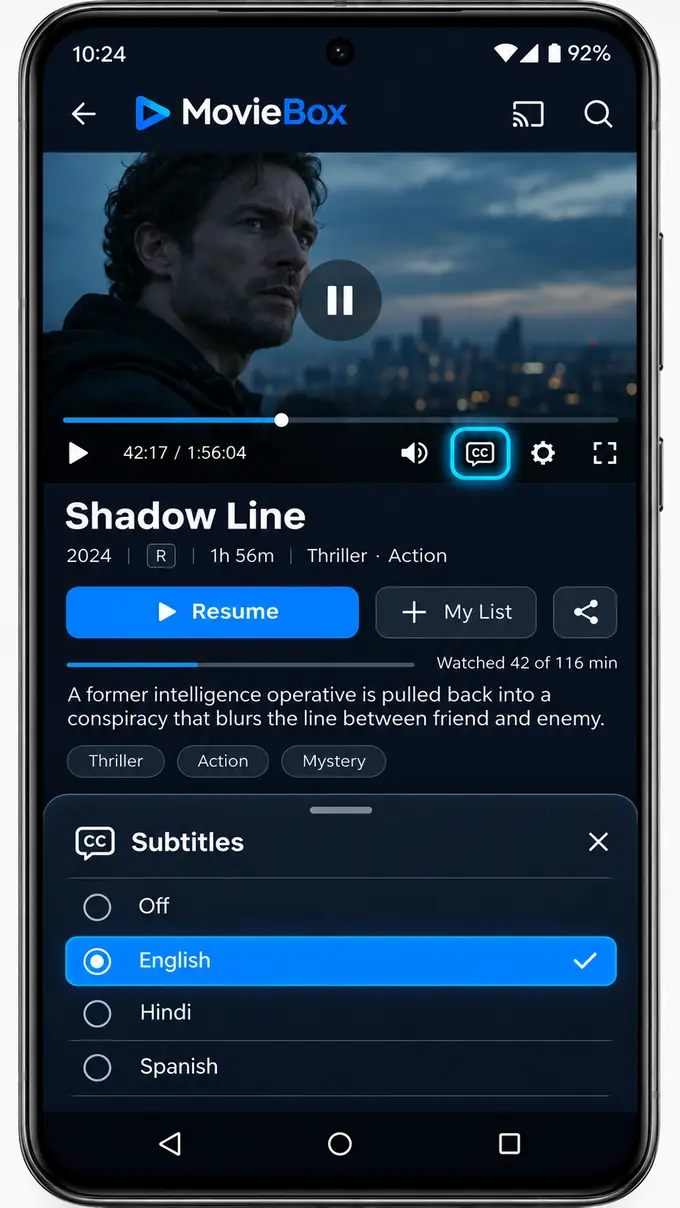
If a subtitle menu opens, read the choices shown for the title you are playing and select the language you want. A language visible in an example image is not a promise that it is available for your movie. The list may be shorter, different or absent.
Close the menu if needed and return to playback. Selecting a language is only the first check; make sure the words actually appear on screen before depending on them for the rest of the film.
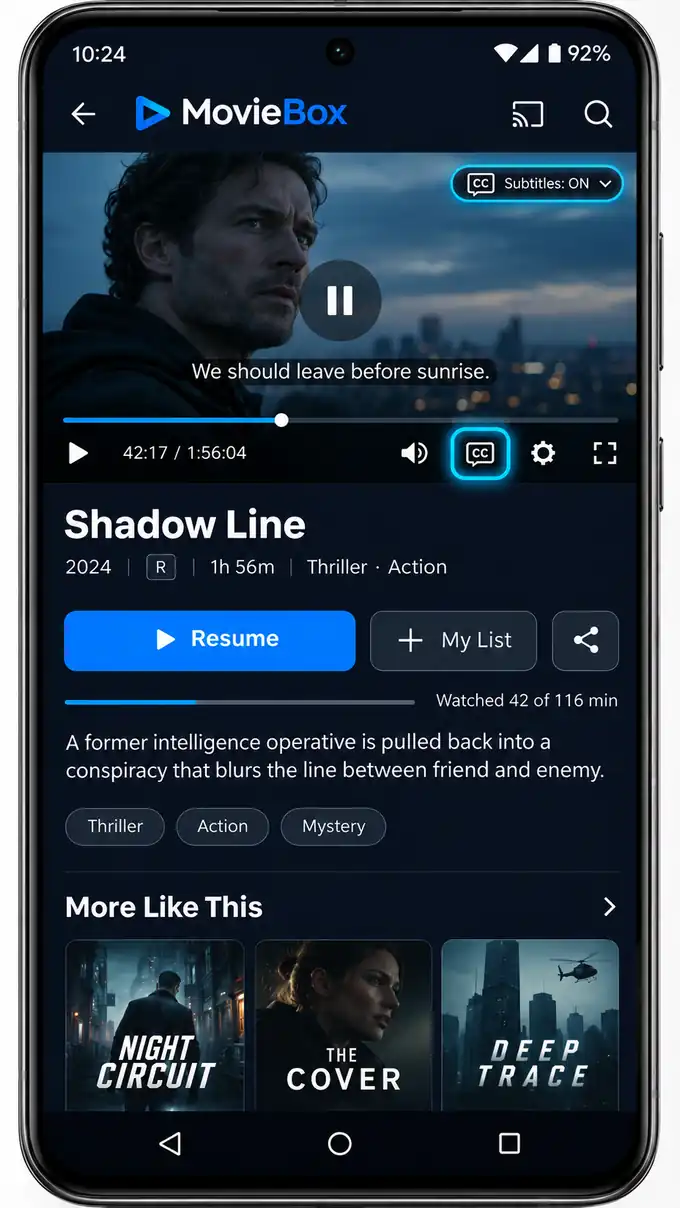
Check Captions During Playback
Let a scene with spoken dialogue play for a moment. If text appears over the video and matches the speech closely enough to follow, the chosen track is working for that scene. If the screen stays clear, revisit the available subtitle choices. A quiet opening or a scene without dialogue may not display any text even when captions are selected.
Where several resources or language versions are offered for the same title, subtitle availability may differ between them. Check the one you are watching instead of assuming a choice made for another version carries over.
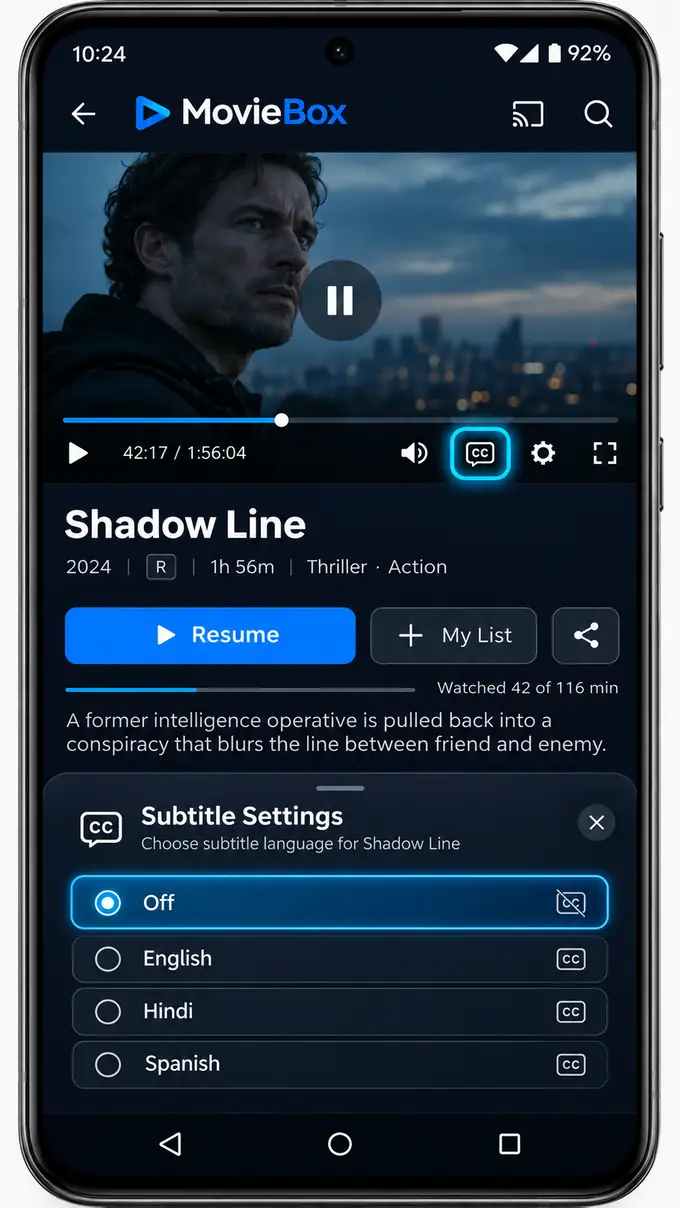
Turn Subtitles Off, If That Choice Exists
Open the same subtitle menu again. If it includes Off or None, choose that option and check whether the selectable captions disappear during dialogue. The Off choice shown in the example is not confirmed for every MovieBox build, player or title.
If your menu has no disable option, do not assume another settings path will remove the text. Words permanently embedded in the video picture are separate from a selectable subtitle track and cannot be switched off with a caption menu.
Subtitle Language Is Different From Spoken Audio
Subtitles display text over the video when a selected track is available. Dubbed or alternate audio changes the spoken dialogue if another audio choice is offered. Choose and check these separately; an English subtitle track does not change a Hindi dub into English speech.
App interface language affects labels or navigation where supported, not necessarily a video’s audio or captions. Embedded subtitles are part of the video picture, so a selectable-caption setting cannot remove them.
Subtitle FAQs
Can I choose any subtitle language in MovieBox?
Only languages listed for the current title and player can be selected. If yours is missing, check another resource if the app offers one, but do not assume it will include that track.
Can I change subtitles without changing spoken audio?
Yes, when the player offers a separate subtitle track. Selecting it changes the on-screen text; spoken dialogue changes only if you choose a separate audio or dubbed option.
Can I turn MovieBox subtitles off?
If your subtitle menu shows Off or None, select it and confirm the captions disappear. Some video text may be part of the picture and cannot be disabled that way. An Off control has not been established for every build.
Will my subtitle choice apply to every movie or episode?
Do not assume it will. Check the available track and its on-screen result for each title or resource you watch.
Final Check: Make Sure Your MovieBox Subtitles Work
Open the subtitle options your player provides, select a listed language and watch a scene with spoken dialogue. If captions appear as expected, you can continue watching with that track. To turn them off, use Off or None only if the menu offers it, then check the video again. If a language is absent, choose from the available tracks or check another title without assuming it will have the same options.