
How to Download Movies in MovieBox for Offline Viewing
To download movies on MovieBox for offline viewing, open a movie in the Android app and tap Download if the option is available. Review the download quality, source, and subtitle choices, then start downloading. You can track the progress in Downloads and open the saved movie once it finishes.
Before traveling, check whether your downloaded movie plays without an internet connection. Download options and offline availability may vary depending on the title and app version.
This guide explains how to save movies inside the app. If you need the Android installer or version information, visit our Movie Box Mod APK page.
Download options may vary by movie and app version. The illustrations show different examples of the process.
1. Find and Open a Movie
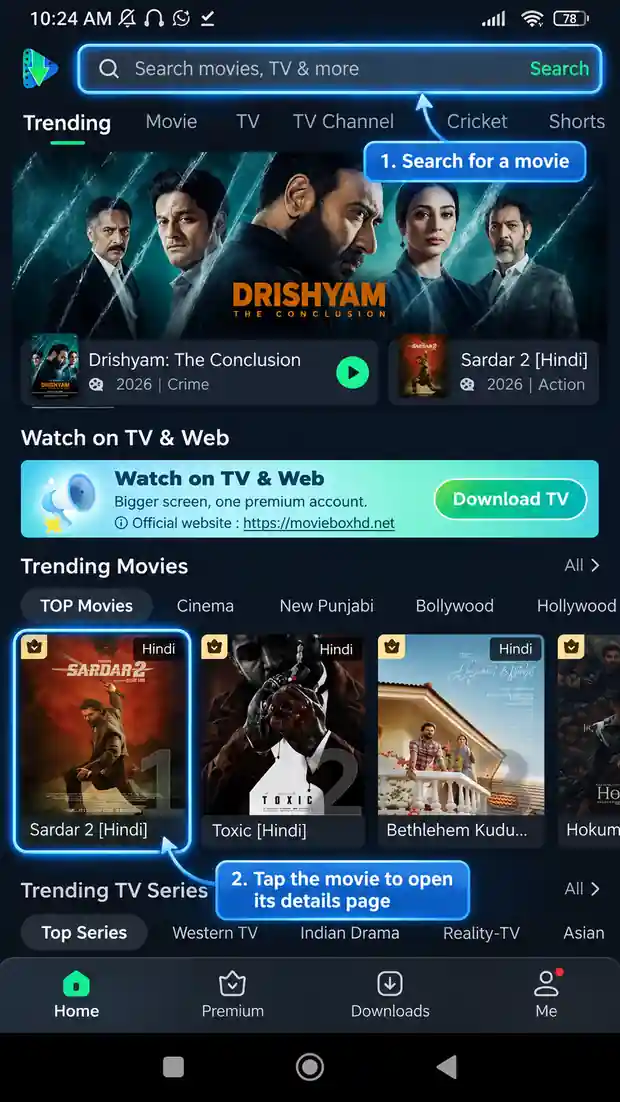
Start on Home. Use the search field at the top to look for a film, or browse the movie categories shown in your app. Open the title you want to save.
Before moving on, check the title and any language label on its details page. Similar names, dubbed versions and different resources can make it easy to choose the wrong item.
The first illustration highlights both the search field and a movie card. It shows where to begin; it does not mean that every film in the browsing list can be downloaded.
2. Find the Download Control
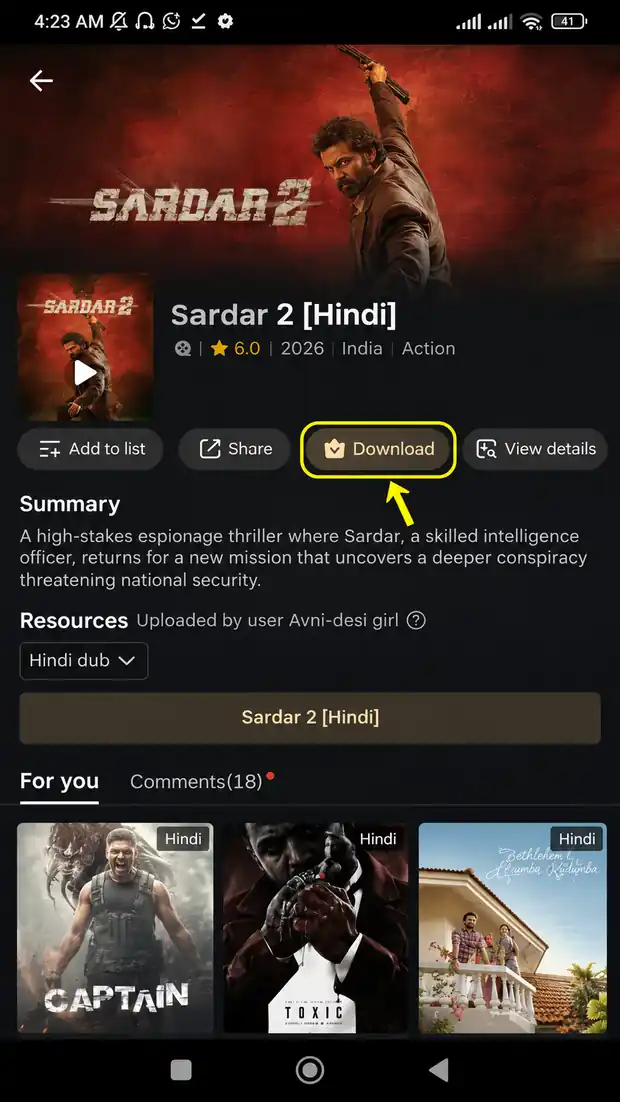
On the movie details screen, look for Download. The illustrated Sardar 2 page places it beside Add to list and Share. Tap it if that option is available for your selected title.
Opening a movie’s details and adding it to a list are different from saving its video. Look for the media-download action rather than assuming a watchlist entry is ready to play offline.
Follow any access or sign-in prompt on your screen before continuing. The crown icon beside Download is not a promise that downloading is available without restrictions; access can differ between builds and accounts.
3. Review the Download Choices
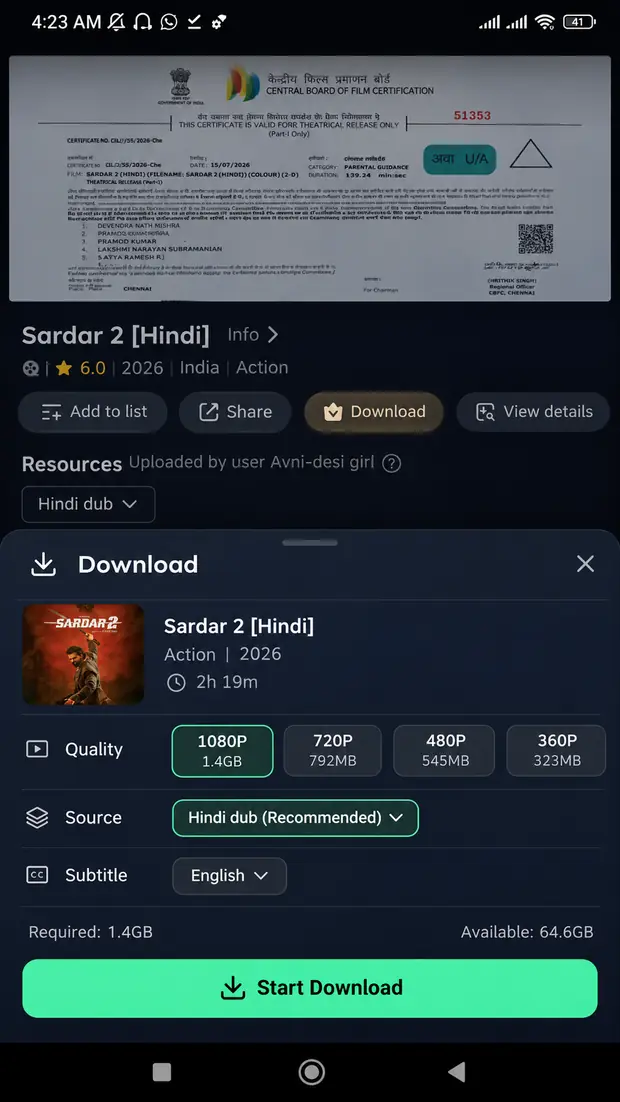
If a download panel appears, review the options offered for that movie. The illustration groups Quality, Source and Subtitle above a Start Download button. Your screen may offer different choices or fewer fields.
Review any required-space and available-space figures before you confirm. When the choices are suitable, use Start Download if that button appears in your build.
4. Follow Download Progress
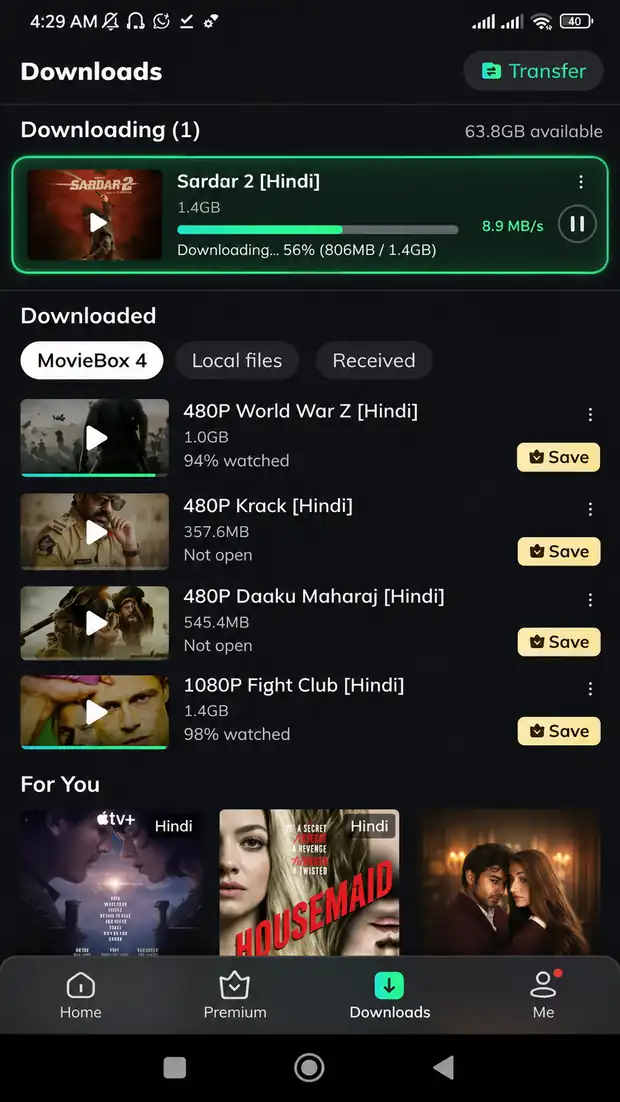
Open Downloads using the app’s navigation. Look for an active item with a progress bar or a downloading status. The progress example shows Sardar 2 in a Downloading area above the saved library.
Keep a connection available while the transfer runs. Watch the item’s actual status rather than leaving as soon as its cover appears. An entry can be visible before its video has finished saving.
If your build offers pause or resume, use its visible transfer controls. Before switching away, check whether the transfer keeps running; background downloading and retry behavior can differ.
5. Find Your Saved Movie
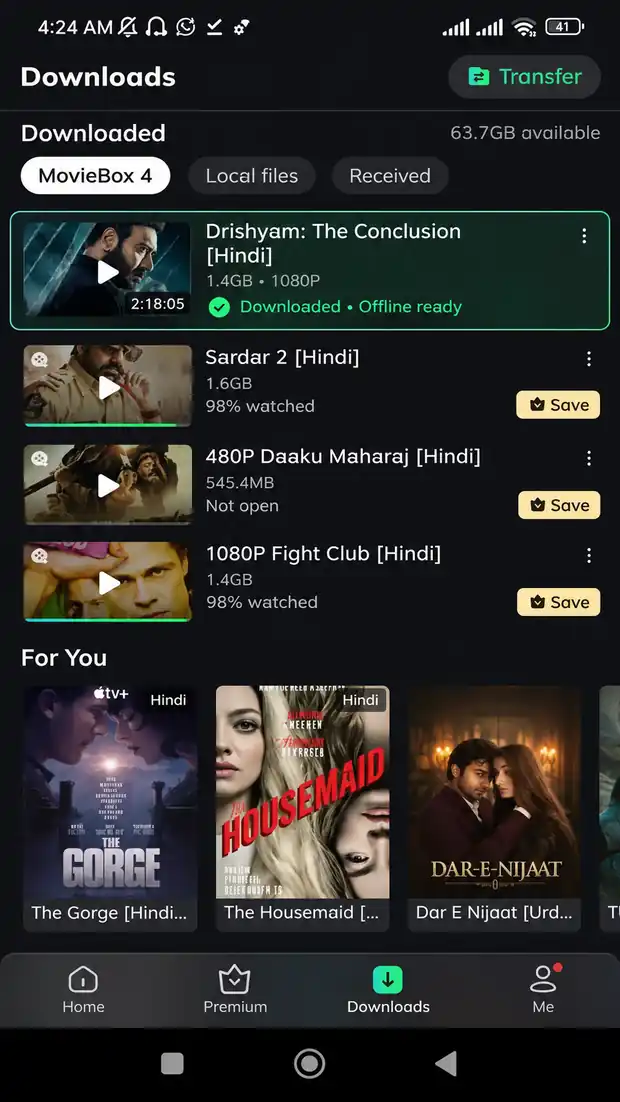
Return to Downloads and look in the saved or completed-items area. The illustrated library uses a Downloaded heading and a MovieBox 4 tab. Follow the equivalent labels in your own interface.
Check the status beside the film you selected. A percentage followed by watched describes viewing progress; it should not be read as the percentage still left to download.
The completed-item illustration highlights Drishyam: The Conclusion with an offline-ready label. It is a different movie from the Sardar 2 progress example above.
Open the completed item’s play control from this library when you are ready to check it. Keep media downloads separate from the APK file used to install the app.
6. Try the Completed Item Offline
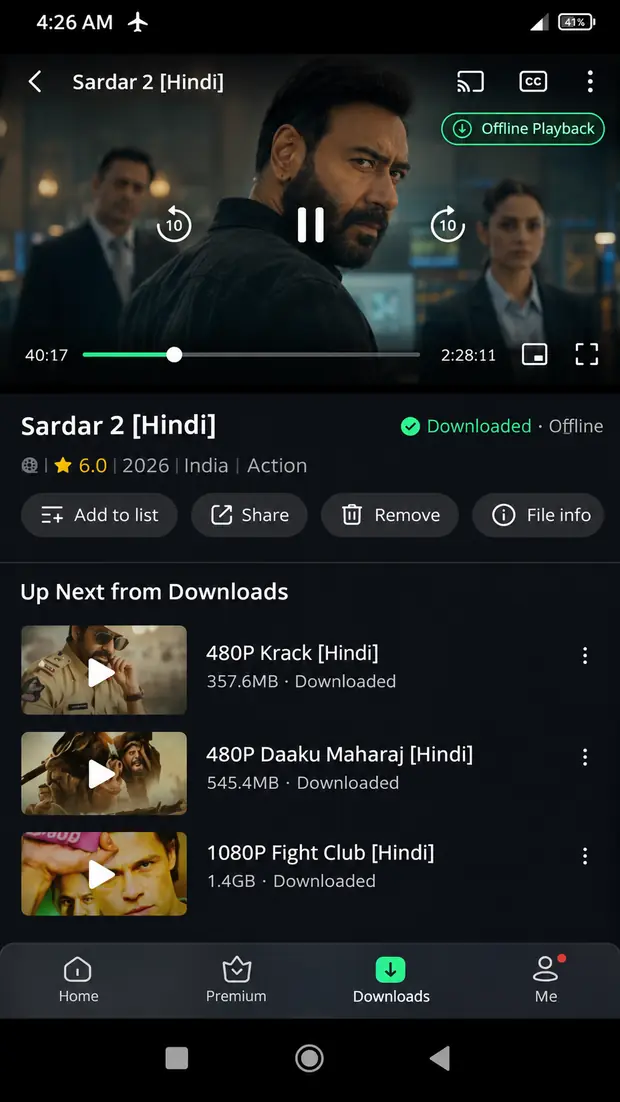
Before travelling or leaving a reliable connection, check the saved movie on the phone you will use. A completion label is useful, but the practical check is whether that item opens and plays with the connection off.
- While connected, confirm that the selected movie has finished downloading.
- Turn off Wi-Fi and mobile data. If you use airplane mode, check that Wi-Fi has not remained enabled.
- Open the completed movie from the app’s Downloads library and try playback. Check the sound and any subtitles you need.
- Restore your connection when you have finished checking or if the app asks for access that requires it.
If the saved title needs a connection, do not rely on it for a fully disconnected journey. Confirm the result on your phone even if the app displays an offline indicator.
Availability and Storage Before You Leave
MovieBox downloads depend on more than finding a film in the catalogue. The title, selected resource, build and account access can affect which saving options appear and whether a saved item remains usable without a connection.
- Choose what is actually available. Do not assume a title has the same quality, language or download options as the illustrations.
- Allow room for the video. Check the estimate for the chosen item. Saving several movies uses more storage than keeping their entries in a watchlist.
- Plan for the transfer. Downloading media uses a connection. Wi-Fi can help you avoid using a mobile-data allowance, but no Wi-Fi-only setting is assumed here.
- Check the items you need. Confirm playback and captions before you leave, rather than assuming another movie’s successful check applies to the whole library.
If a transfer fails or a saved video will not open, use the existing MovieBox Not Working guide for download and playback problems. Keep failure recovery separate from the normal saving steps above.
Offline-Viewing FAQs
Does watching a movie once mean it is downloaded?
No. A watch-history entry or playback progress is not the same as a completed media download. Look for the item in the saved library and check whether it opens without a connection.
Will subtitles work on a downloaded movie?
Only if the needed track is available to the saved item. A subtitle choice shown before downloading does not by itself confirm offline captions. Check the language you need during the disconnected playback check.
Can I move downloaded movies to my phone gallery?
Saving a video inside MovieBox does not automatically put it in your gallery. This walkthrough uses the in-app library and does not cover exporting files. Check what your build’s Save or Transfer option actually offers before treating either as a gallery-export control.