
MovieBox Not Working? Fix Common Android Problems
If MovieBox keeps crashing, gets stuck loading, won’t play movies, or shows a connection error, start by force stopping and reopening it.
Then check your internet connection, restart your device, and clear the app cache if the problem continues.
Most issues can be investigated without uninstalling MovieBox or deleting its data. Follow the quick fixes below, then use the troubleshooting section that matches your problem. Change one thing at a time and reopen MovieBox after each check.
If you need the current Android APK or version information, visit our Movie Box Mod APK page.
Start With These Quick Fixes
 Start With These Quick Fixes
Before changing advanced Android settings, work through these checks in order.
1. Force Stop MovieBox and Open It Again
If MovieBox is frozen, unresponsive, or stuck on one screen, fully close the app instead of only returning to the Android home screen. Force stopping ends its current process without clearing saved app data.
Open:
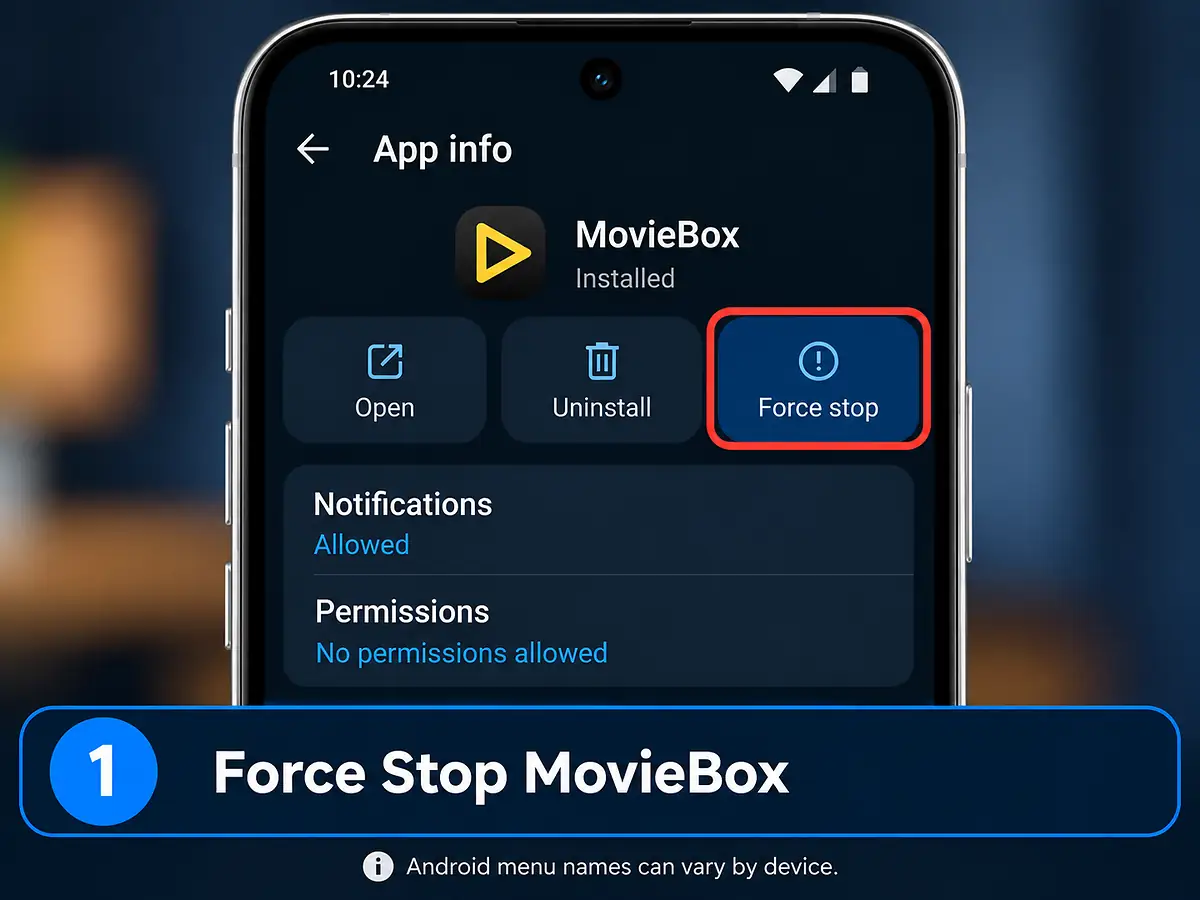
and use Force stop if your Android version provides that option.
Reopen MovieBox from its app icon and try the action that failed. If the same problem returns, continue with the next check.
Menu names can differ slightly between Android manufacturers.
2. Check Whether the Internet Connection Works
Open another website or online app on the same device.
If other apps also cannot connect, fix the device’s network connection before changing MovieBox settings.
If possible, test MovieBox once on Wi-Fi and once on mobile data. If it works on one connection but not the other, the problem is more likely related to the network than the APK itself.
3. Restart the Android Device
A normal device restart can clear temporary processes that may be interfering with the app.
Restart the phone or tablet, wait for Android to load completely, then open MovieBox again.
This is especially useful when MovieBox previously worked and suddenly stopped responding without any obvious change.
4. Clear the MovieBox Cache First
If MovieBox opens but behaves incorrectly, Android’s cached temporary files may be part of the problem.
Open:
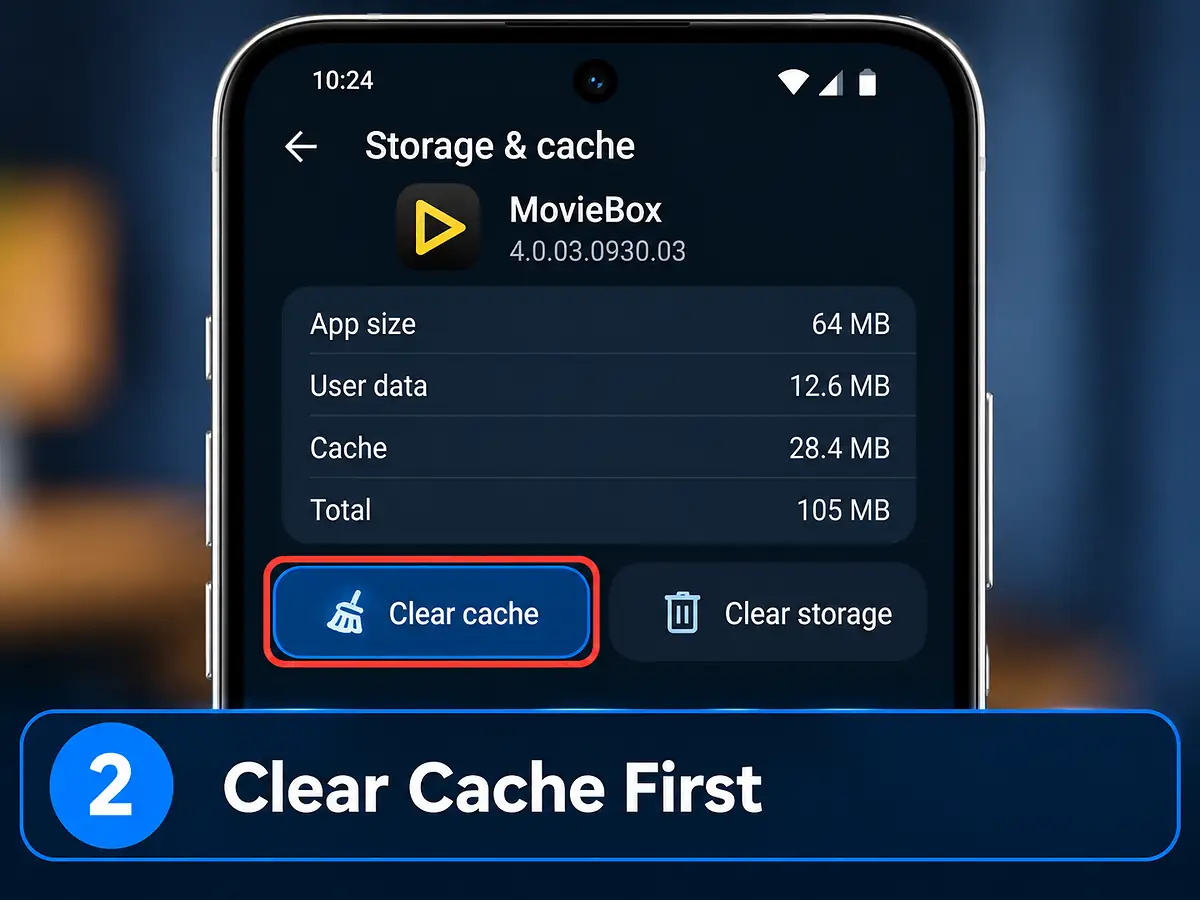
and choose Clear cache where available.
Start with the cache only.
Do not clear app data or storage at this stage, because clearing data can remove locally stored settings, sign-in information, or downloaded content depending on how the app stores them.
5. Check Available Storage
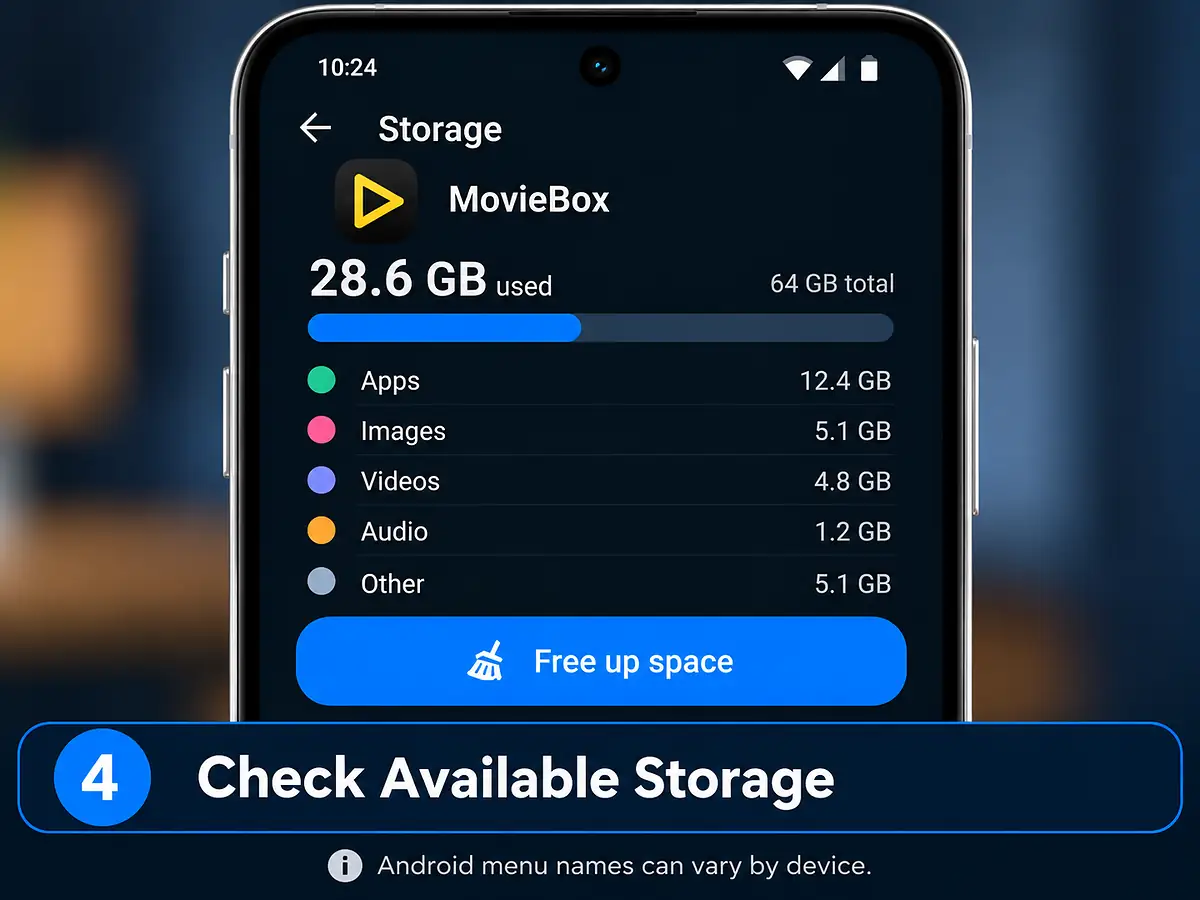
MovieBox may have problems downloading files or creating temporary data when the Android device is almost full.
Check the device’s available storage and remove unnecessary files if space is very low.
Remember that free space is needed not only for the APK itself but also for app data, temporary files, and offline downloads.
6. Check the Installed MovieBox Version
If the app stopped working after a long period without updating, check which MovieBox build is installed.
The current Android build used on this site is:
- Version:
- 4.0.03.0930.03
Do not assume that every problem requires an update, or that a different version number explains the failure.
If the problem began immediately after installing another build, record that timing and test the basic fixes above before uninstalling anything. The installed build is one area to investigate, not a confirmed cause.
Do Not Clear App Data or Reinstall First
 Do Not Clear App Data or Reinstall First
Clearing app data and uninstalling are stronger troubleshooting steps and should not normally be the first response to a MovieBox problem.
Depending on the app and Android device, these actions can remove:
- local settings
- login state
- downloaded content
- cached media
- other locally stored app information
Start with Force stop, network checks, a device restart, cache clearing, and storage checks.
If those do not solve the problem, later sections of this guide will cover when clearing data, updating, reinstalling, or changing other settings makes sense.
Identify Which MovieBox Problem You Have
 Identify Which MovieBox Problem You Have
If the quick fixes did not help, identify what is actually failing: app launch, connection, playback, or media downloads. Use the matching section below rather than repeating every fix for every symptom.
The main problem types covered in this guide are:
- MovieBox will not open
- MovieBox keeps crashing
- MovieBox is stuck loading
- movies or TV shows will not play
- playback keeps buffering
- MovieBox shows a connection or network problem
- downloads are not working
- MovieBox stopped working after an update
- the APK installs but the app does not work correctly
Note when the problem happens and whether other titles or online apps still work. These observations help narrow the next check without confirming a cause on their own.
Test one fix, reopen MovieBox, and see whether the behavior changes before moving to the next step. Stop escalating once the affected function works normally again.
MovieBox Will Not Open
If MovieBox does not open at all, begin with the app process and Android system state before changing deeper settings.
Try these checks in order:
- force stop MovieBox
- reopen the app
- restart the Android device
- confirm the device still has free storage
- check whether another recently installed update or Android change may have affected the app
If MovieBox still will not launch, return to the cache check above and review the compatibility guidance below.
Do not uninstall immediately if you have local settings or downloads you want to keep.
MovieBox Keeps Crashing
If MovieBox opens but closes unexpectedly, the issue may involve temporary app data, device resources, compatibility, or the installed build. Note whether it closes immediately or only after opening a particular title or feature; this is different from an app that never launches.
Start with:
- force stop MovieBox
- restart the phone or tablet
- close unnecessary background apps
- clear MovieBox cache
- confirm the device is not critically low on storage
If the crash started immediately after updating MovieBox, note the installed version before making stronger changes.
If crashes continue, review the compatibility and app-data guidance below. Repeated crashes alone do not prove that the APK or stored data is damaged.
MovieBox Is Stuck Loading
 MovieBox Is Stuck Loading
A loading screen that never finishes can be caused by the app process, network connection, temporary cache, or a service request that is not completing.
Try:
- close MovieBox completely
- confirm the internet works in another app
- switch between Wi-Fi and mobile data if available
- reopen MovieBox
- clear cache if the loading problem continues
Check whether the entire app is stuck, one section fails to load, or only one title fails. If navigation and other titles work, focus on the affected content rather than resetting the whole app. If several sections keep loading, compare network access and cache behavior before making stronger changes.
MovieBox Shows a Connection or Network Problem
 MovieBox Shows a Connection or Network Problem
A MovieBox connection problem does not always mean the APK itself is broken.
First confirm whether the Android device can access other websites or online apps.
Then try:
- turning Wi-Fi off and back on
- testing mobile data if available
- restarting the router if other devices also have problems
- temporarily disconnecting an existing VPN, if appropriate, then restoring your usual setup
- reopening MovieBox after the connection is stable
If other online apps also fail, troubleshoot that connection before changing MovieBox. If MovieBox works on one network but not another, the connection path is worth investigating, but this comparison does not identify a single cause. Keep the test limited to the connection rather than changing unrelated device security settings.
Do not clear app data before testing the connection first.
Movies or TV Shows Will Not Play
 Movies or TV Shows Will Not Play
If MovieBox opens normally but a movie or TV episode does not start, first determine whether the problem affects one title or everything.
Test another title.
If another video plays correctly, the issue may be specific to the original stream or content item.
If nothing plays:
- check the internet connection
- restart MovieBox
- restart the device
- clear the app cache
- test another network if possible
A playback problem is different from an installation problem. If the app opens and navigation works, focus on playback and connection checks first. One failed title and several failed titles need different checks; neither result by itself means the APK should be reinstalled.
MovieBox Keeps Buffering
Buffering means playback is waiting instead of continuing smoothly. An unstable connection, competing network activity, device workload, or an individual stream can contribute; internet speed is not the only possibility.
Try:
- test the same title again
- check whether other devices are heavily using the network
- move closer to the Wi-Fi router
- switch between Wi-Fi and mobile data
- close downloads or background apps using bandwidth
- restart the router if the entire network is slow
If only one video buffers while other titles play normally, the problem may be limited to that source.
If every title buffers, the network or device performance becomes more likely.
MovieBox Downloads Are Not Working
 MovieBox Downloads Are Not Working
This section covers movies or episodes downloaded inside MovieBox, rather than downloading the APK installer from the website. If streaming works but those media downloads fail, check storage and network conditions first.
If you are unsure how the normal saving process works, see how to download movies on MovieBox for offline viewing before troubleshooting a failed transfer.
Confirm:
- the Android device has enough free storage
- the internet connection remains stable
- MovieBox has not been restricted by Android battery or background settings
- the download does not fail only for one title
- whether the download stops only after you leave the app or turn off the screen
If a download begins but repeatedly stops, restart MovieBox and try again after checking storage and connection.
Do not clear app data while troubleshooting existing offline downloads unless you understand that locally stored download information may be removed.
One Title Fails but Everything Else Works
 One Title Fails but Everything Else Works
If MovieBox itself opens, navigation works, and other titles play normally, avoid changing the entire app configuration because of one failed movie or episode.
The problem may be specific to that title, stream, or source.
Try:
- close the failed title
- open another movie or episode
- confirm playback works elsewhere
- return to the original title later
A single content failure is not enough by itself to conclude that the MovieBox app is broken.
MovieBox Stopped Working After an Update
 MovieBox Stopped Working After an Update
If MovieBox worked before an update and problems started immediately afterward, check whether Android completed the installation or rejected the APK. A rejected installation belongs to the update or installer checks; an app that installed and then crashes, cannot connect, or will not play content needs the symptom checks in this guide.
Before replacing the app again, review how to update MovieBox without unnecessary data loss.
Check the installed MovieBox version and test the basic fixes from the beginning of this guide before uninstalling anything.
The current Android build used on this site is:
- Version:
- 4.0.03.0930.03
If the installed version is different, that alone does not prove it is causing the problem. Record the build you intended to install and when the failure first appeared.
Try:
- force stop MovieBox
- restart the Android device
- clear MovieBox cache
- reopen the app
- test another network if the problem involves loading or playback
If installation completed but the problem continues, follow the section matching the actual symptom. A failure that appeared after updating is worth investigating, but its timing does not prove that the update caused it.
Check MovieBox Permissions and Android Restrictions
Android can restrict an app even when the APK itself installed correctly. Check the permission or access setting relevant to the function that fails, rather than treating permissions as a general cure.
Depending on the Android version and device manufacturer, check MovieBox under:
Look for settings related to:
- network or mobile-data access
- battery usage
- background activity
- storage or media access where relevant
- notifications if they are required for a specific function
Do not enable every permission automatically.
Only change a setting when it relates to the feature that is failing.
For example, if downloads stop in the background, battery or background restrictions may be more relevant than camera or microphone permissions.
Check Battery and Background Restrictions
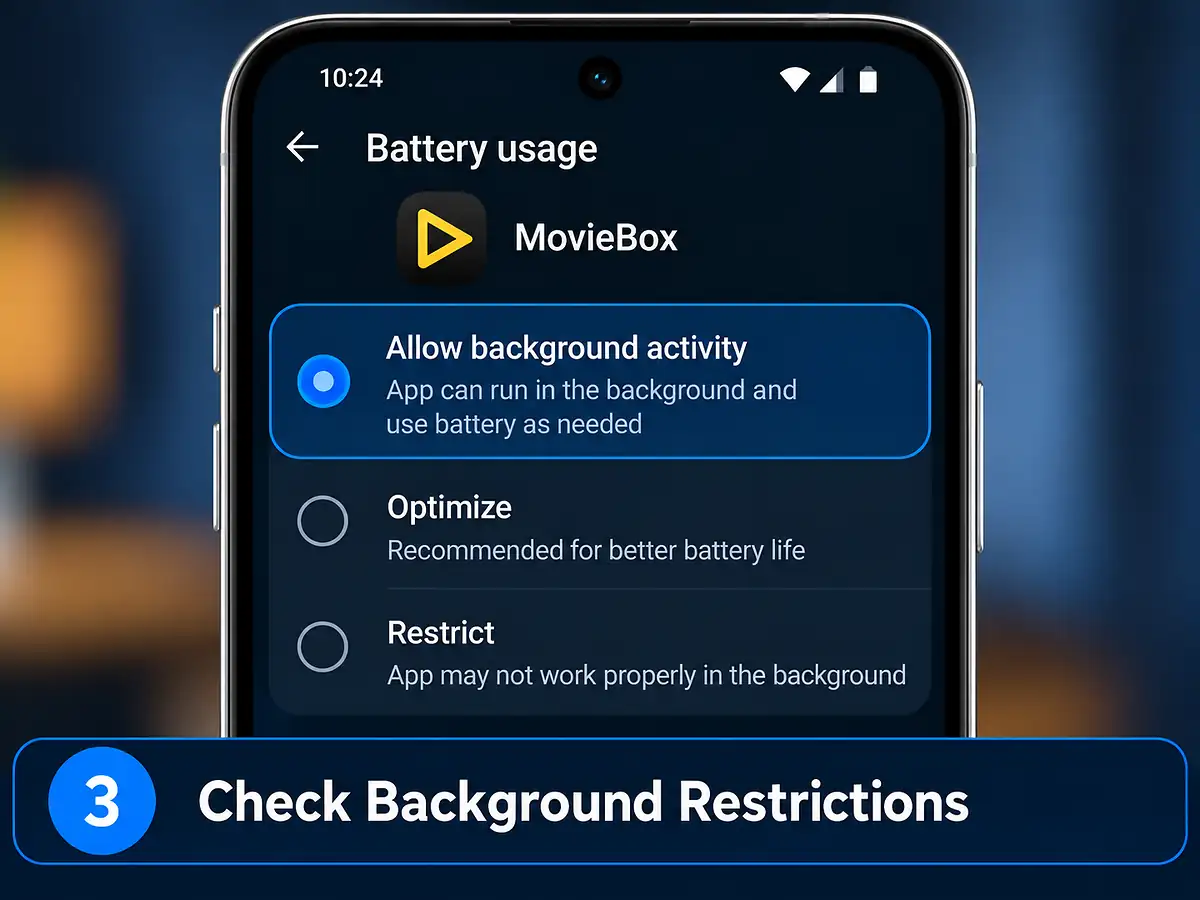
Some Android phones aggressively limit apps running in the background to save battery.
This can affect downloads or background activity even when MovieBox works while it is open.
Check MovieBox’s battery settings and see whether Android has placed the app under a restricted mode.
If a download stops whenever you leave MovieBox, test whether allowing normal background activity changes the behavior.
The exact battery-setting names vary between Android manufacturers.
Avoid disabling battery optimization for every app on the device just to troubleshoot MovieBox.
When Should You Clear MovieBox App Data?
Clearing app data is stronger than clearing cache.
Consider it only after simpler checks have failed and you are prepared to lose locally stored app information. It is not a routine fix for one unavailable title or a connection that also fails in other apps.
Before clearing data, consider whether MovieBox contains:
- locally stored settings
- account or login state
- downloaded content
- preferences
- other information stored inside the app
If you decide to continue, Android commonly provides the option under:
The wording may appear as Clear data, Clear storage, or something similar.
After clearing it, MovieBox may behave like a fresh installation and may require setup again.
When Should You Reinstall MovieBox?
 When Should You Reinstall MovieBox?
Reinstallation is a later fallback when the installation itself appears damaged or persistent app failures remain after the earlier checks. It will not necessarily resolve a network, service, or single-title problem.
Consider reinstalling only after you have already checked:
- app restart and device restart
- internet connection
- cache
- available storage
- Android restrictions
- installed version
- whether the problem affects one title or the entire app
Before uninstalling, remember that Android may remove locally stored MovieBox data with the app.
If preserving local data matters, do not treat uninstalling as a harmless first step.
MovieBox Installs but Still Does Not Work
A successful APK installation confirms that Android accepted the package; it does not guarantee that every feature will work correctly on every device.
If the problem started after updating MovieBox, the MovieBox Old Versions guide explains previous builds, downgrade considerations, and the risks of replacing an installed version.
If Android rejected the APK, installation is not complete. If MovieBox installed but then crashes, cannot connect, or will not play content, identify that specific failure and use the matching checks above.
If MovieBox installs but still crashes, freezes, or fails to load, possible areas to check include:
- Android version compatibility
- available memory and storage
- network access
- app cache or data
- device-specific restrictions
- the installed MovieBox build
The MovieBox Android build provided on this site is listed for Android 8.0 or newer. Compatibility may still vary depending on your device and Android version.
When Is the Problem Probably Not Your Phone?
If you’re using an iPhone, the Android APK and its troubleshooting steps do not apply. Read our MovieBox for iPhone guide for platform-specific compatibility information.
Sometimes an app-side service, a particular content source, or another factor outside the device may need investigation.
For example, if:
- MovieBox opens normally
- navigation works
- other apps have a stable internet connection
- storage is available
- multiple MovieBox titles or online functions fail at the same time
then repeatedly changing Android settings may not help. This pattern makes a service or content source worth considering, but it does not prove that MovieBox servers are down.
Avoid resetting the entire phone, changing unrelated permissions, or repeatedly reinstalling the APK without evidence that the device is causing the problem.
If the issue is temporary, testing again later may be more useful than making increasingly aggressive changes.
MovieBox Troubleshooting Order
When you are unsure what to try next, use this order:
- force stop and reopen MovieBox
- test the internet connection
- restart the device
- clear cache
- check free storage
- test another title or network
- check MovieBox version
- check battery, background, and relevant Android restrictions
- clear app data only if necessary
- reinstall only after the earlier steps fail
This order starts with low-impact fixes and leaves actions that can remove local data until later.
Frequently Asked Questions
 Frequently Asked Questions
Why is MovieBox not working on my Android phone?
The cause can vary. Start by force stopping the app, checking the internet connection, restarting Android, clearing cache, and confirming there is enough free storage.
Why does MovieBox keep crashing?
Repeated crashes can be related to temporary app data, limited device resources, compatibility, the installed build, or corrupted app data. Start with a restart and cache clearing before stronger resets.
Why is MovieBox stuck loading?
Check whether the internet works in another app, test another network if possible, restart MovieBox, and clear its cache. If only one title or section fails, the problem may be limited to that content.
Why does MovieBox keep buffering?
Buffering can come from an unstable or busy network, device performance, or the specific stream. Test another title and another connection before changing the app installation.
Should I clear MovieBox data?
Not as the first fix. Clearing app data can remove locally stored settings, login state, downloads, or other app information. Try clearing cache first.
Should I uninstall and reinstall MovieBox?
Reinstall only after simpler troubleshooting has failed. Uninstalling can remove locally stored app data, so it should not be the first response to a playback or network problem.
Why did MovieBox stop working after an update?
First confirm whether Android completed the update. If it did, check the installed version and note whether MovieBox fails at launch, during connection, or during playback. Restart the app and device and clear cache before considering stronger action. The timing alone does not establish the cause.
What if MovieBox does not work on only one movie or episode?
Test other titles. If everything else works normally, the problem may be limited to that specific content rather than the whole MovieBox app.
Conclusion
Start with the actual symptom: an app that will not launch needs different checks from a single movie that will not play. Use the relevant section and test after each change instead of repeating every fix.
Protect settings and downloaded content by trying low-impact checks first. Clear app data or reinstall only when the earlier results justify it and you understand what could be lost.
If other apps also cannot connect, focus on the device’s connection; if only one title fails, avoid resetting the whole app. Let those observations guide the next step.